
Privacy screen: black out the remote screen while you work
Black out the remote computer's monitors with one click. Nobody next to it can see what you are doing or touch the keyboard and mouse, while you keep seeing and working on the real desktop.
In the Windows client · On paid plans · With your own message
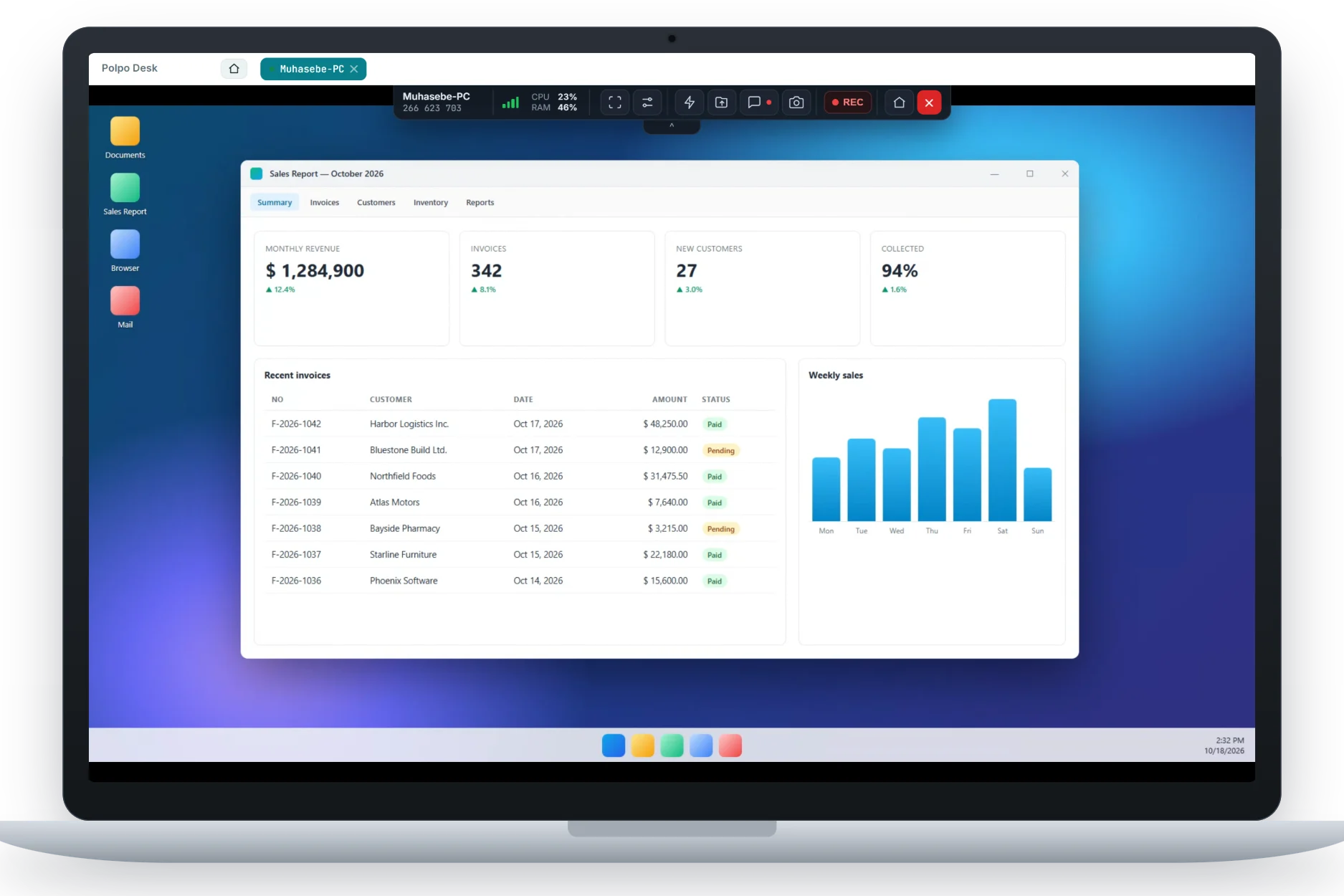
Two different pictures at the same time
While the privacy screen is on, the remote monitor shows only the message you set. The operator sees and controls the real desktop behind it.
Privacy mode is on — remote support is in progress on this computer.
When is it useful?
When you support computers that show sensitive information or stand where other people can see them.
Accounting, HR and finance screens
Keep payroll, customer records or banking screens from being seen by others in the office while you do maintenance.
Open-plan offices and shared spaces
Keep your work out of sight when the computer sits in a busy office or a meeting room.
Checkout, reception and display PCs
Temporarily black out customer-facing screens while you type an admin password or change settings.
Unattended maintenance
When nobody is at the computer, stop someone who walks in from touching it and interrupting your work.
Use it in three steps
You turn the feature on and off from the session toolbar in the operator console.
-
Connect
Open a remote control session to a computer running the Windows client.
-
Turn on the privacy screen
Choose Privacy screen in the Actions menu on the session toolbar. The remote monitors go black and show your message.
-
Turn it off when you are done
Turn it off from the same menu. Even if you forget, the screen comes back on by itself when the last operator leaves the session.
Details
The privacy screen does more than hide the picture: it protects both the remote user's privacy and their control over the computer.
-
Every monitor goes black
If the remote computer has several monitors, all of them are covered at the same time; no picture is left on any screen.
-
Local keyboard and mouse are locked
While the privacy screen is on, the person at the computer can't use the keyboard or mouse, so they can't interrupt your work.
-
Your own message
The organization admin sets the text shown on the blacked-out screen in the web panel (up to 200 characters). If it's left empty, a default text is shown.
-
The user stays in control
If the computer's owner turns off "Allow privacy screen" in the client's Security settings, operators can't use the feature.
-
Turns off by itself
When the last operator leaves the session or the connection drops, the black-out is removed automatically; the computer never stays locked.
-
End-to-end encrypted session
What the operator sees is end-to-end encrypted with WebRTC DTLS-SRTP, like the rest of the session.
Requirements
-
Supported
Windows client
Windows 10 version 2004 or later, Windows 11 and Windows Server 2022. The feature isn't available on older Windows versions (e.g. Windows Server 2019).
-
Paid plans
Paid plan
The privacy screen is included in paid plans; it isn't available on the free plan.
-
Not supported
Android phones and TVs
The privacy screen isn't supported on Android devices.
Frequently asked questions
What does the remote person see while the privacy screen is on?
A black screen on every monitor with the message set by your admin in the middle. The windows on the desktop and what you are doing are not visible.
What do I see as the operator?
You keep seeing the real desktop. The black-out only appears on the computer's physical monitors; it doesn't show up in the picture you see remotely.
Can the person at the computer use it in the meantime?
No. While the privacy screen is on, the local keyboard and mouse are locked. The lock is removed when you turn the screen off or the last operator leaves.
Can I change the message on the screen?
Yes. The organization admin can set a message of up to 200 characters in the Settings section of the web panel; it is used for every operator on the team.
Can the remote user block this feature?
Yes. If "Allow privacy screen" is turned off in the Windows client's Security settings, operators can't turn on the privacy screen.
Which plans and Windows versions include it?
It's included in paid plans. The remote computer needs Windows 10 version 2004 or later, Windows 11 or Windows Server 2022.
Keep sensitive work on your screen only
Try Polpo Desk for free; switch to a paid plan to use the privacy screen.