
Mobile device support: connect to Android screens, and to computers from your phone
Support requests do not only come from desktop computers. Polpo Desk is designed to let you see and manage Android phones and Android TV screens remotely, and to support computers from the phone in your pocket. The Android operator app is now on Google Play; the phone and TV client is coming soon.
Free for personal use · No credit card required · 6 languages
Mobile support in both directions
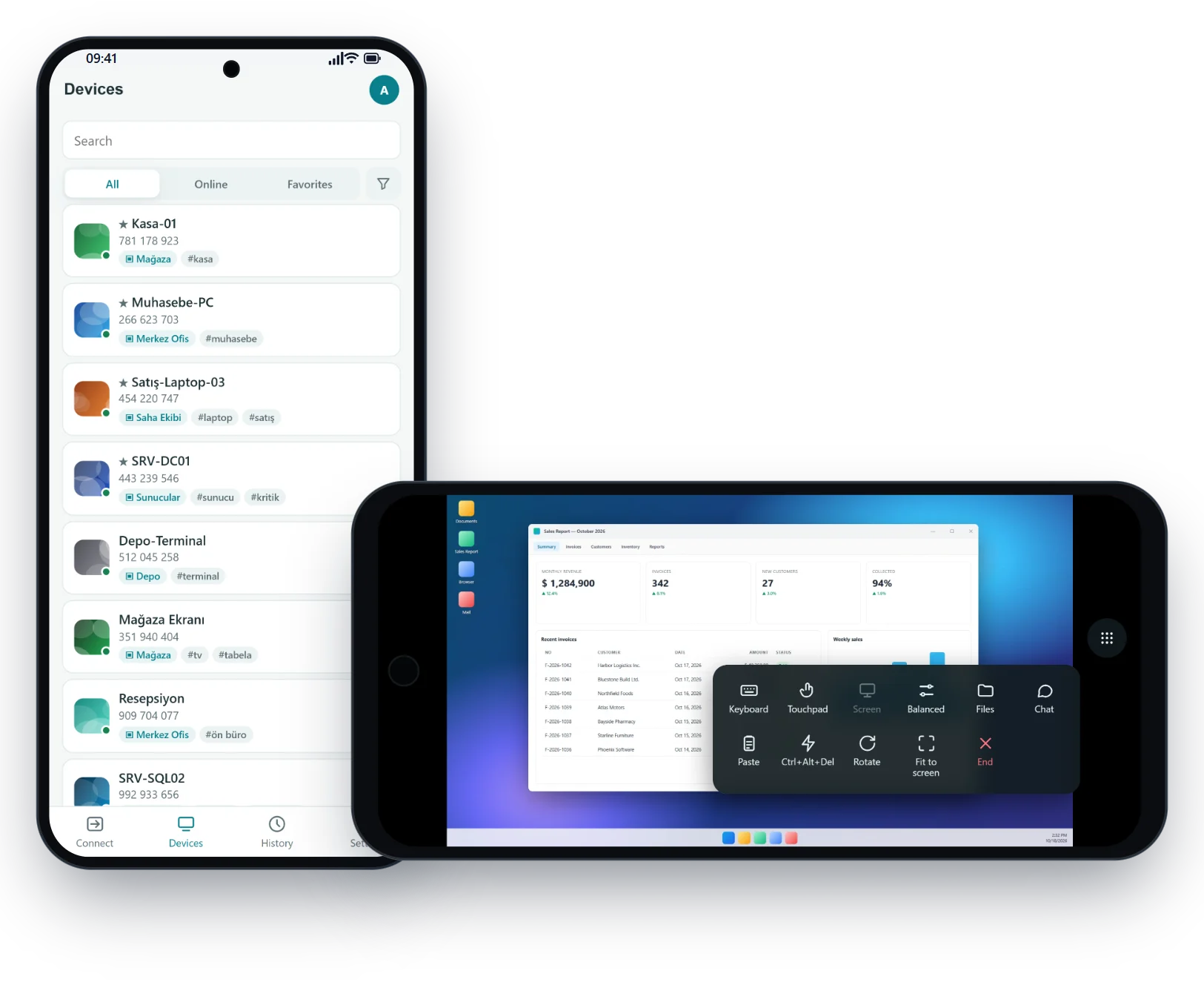
Mobile support covers two different needs. The first is being able to look at a phone in the field, a digital screen in a store or a TV in a meeting room from a distance. The second is connecting to a computer from your phone when you are away from your desk, for example on the road or at a customer visit.
The Polpo Desk Android client shares the device's screen securely and, once the owner grants accessibility permission, also applies taps, swipes and typing. The Android operator app lets you manage computers from your phone with a touch mouse, smart keyboard and clipboard sharing. Both apps are being prepared for release on Google Play.
What can you do with mobile support?
Android devices with a screen, and the phone in your pocket, can become a natural part of your support process.
Digital signage and store screens
Control Android TV screens in your stores remotely and fix an app that opened by mistake or a frozen feed as if you were there.
Meeting room TVs
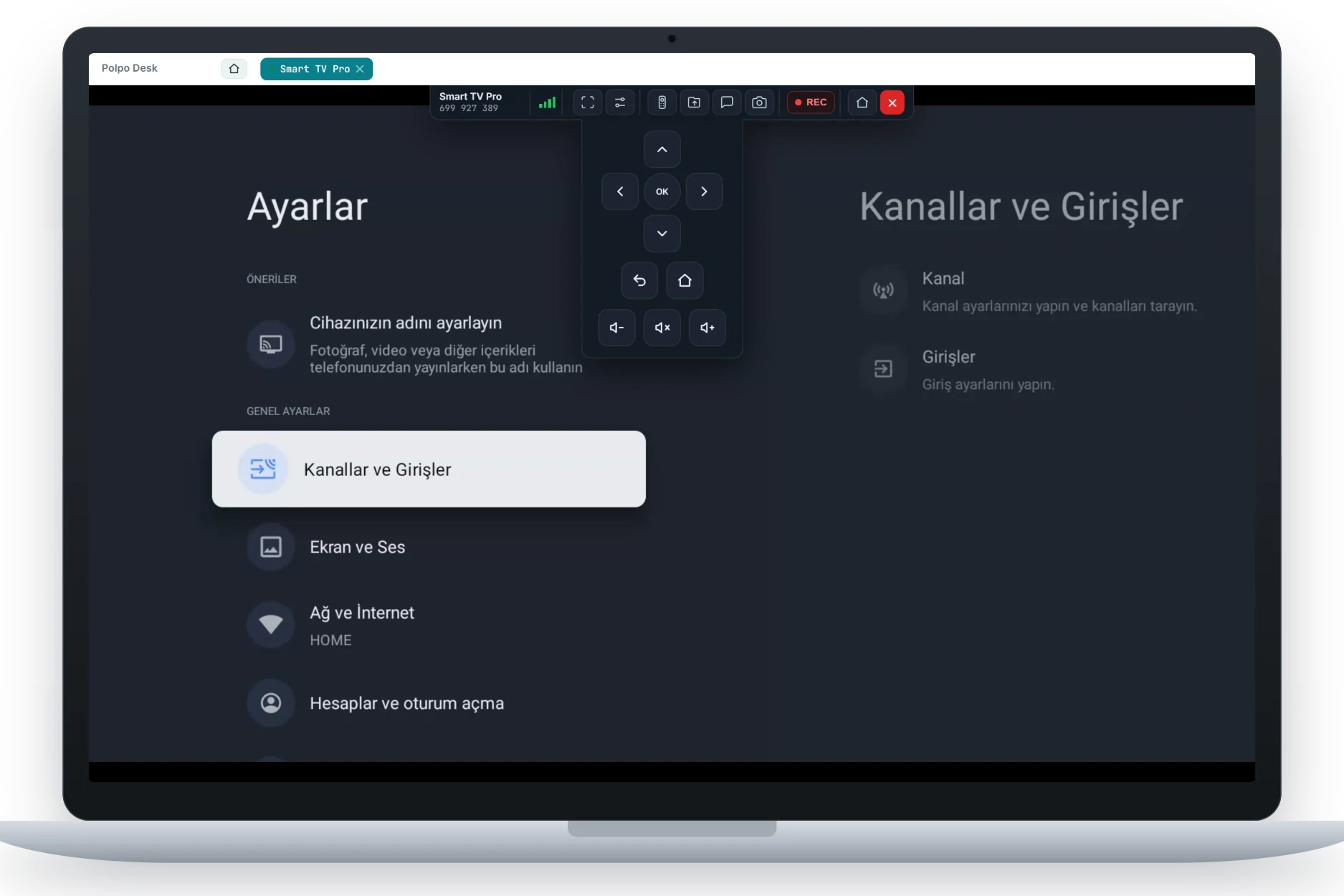
Adjust the room display before the meeting starts, navigating with the virtual remote's arrows, OK, Back, Home and volume buttons.
Android phones in the field
Show your field team where a setting is by seeing their screen, or make the change yourself with the user's permission.
Phones of family and friends
Guide a relative who is struggling to install an app step by step while seeing their screen.
Quick help for computers from your phone
Answer a support request that arrives while you are away from your desk, using the Android operator app on your phone.
Manage TVs from your phone
Connect to Android TVs from the operator app and control them with the on-screen virtual remote.
How connecting to Android devices works
Once the Android client is published on Google Play, the process will take four simple steps.
-
Install the app
Install the Polpo Desk client from Google Play on the Android phone or Android TV that needs help.
-
Share the ID
When the app opens, the device ID and password appear on screen; share them with the person giving support.
-
Approve the connection
Accept the incoming request on the device screen. Android also asks for permission before screen sharing starts.
-
Turn on control (optional)
Grant Polpo Desk accessibility permission once for remote taps and typing; without it, the session stays in view-only mode.
On mobile devices, the user stays in control
Phones are full of personal data. That is why the Polpo Desk Android client follows Android's own permission model and hides no step from the user.
-
Every connection is approved on screen
The person holding the device sees the incoming request and accepts or rejects it; on TVs, approval is requested on screen as well.
-
Visible screen sharing
While sharing is active, Android shows in the notification area that the screen is being shared, and the user can disconnect from the app at any time.
-
Control is optional
Unless accessibility permission is granted, no tap or key command is applied; the operator can only see the screen.
-
End-to-end encryption
Video and control data are encrypted with WebRTC DTLS-SRTP, just as on desktop; our servers do not see session content.
Status of mobile platforms
The Android operator app is live on Google Play; the phone and TV client is being prepared for release. The computer apps and the browser console are available today as well.
-
Coming soon to Google Play
Android phone and Android TV client
View Android screens remotely, control them once accessibility permission is granted, and drive TVs with a virtual remote.
-
On Google Play
Android operator app
Connect to computers and Android TVs from your phone: touch mouse, smart keyboard, clipboard and file transfer.
-
Available now
Windows client
A native, signed app for the computer that receives support. Supports Windows 10, Windows 11 and Windows Server.
-
Available now
Windows and macOS operator app
The desktop app for the person giving support: device list, session tabs and every session tool in one place.
-
Available now
Browser-based operator console
Sign in and connect from a desktop or mobile browser without installing anything.
Connecting to iPhone and iPad devices is not supported at the moment. Current download options are listed on the Downloads page.
Why Polpo Desk for mobile support?
One account, every device
Computers, Android phones and Android TVs are managed in the same device list, with the same groups and tags.
A remote made for TVs
A virtual remote with arrows, OK, Back, Home and volume buttons for interfaces navigated with a remote control.
A touch-friendly operator app
Tap to click or touchpad mode, a smart keyboard with Ctrl, Alt and Win keys, and clipboard sharing.
Smooth on entry-level devices
The picture is encoded efficiently so it stays smooth even on affordable TVs.
A clear permission model
Screen sharing and accessibility permissions are granted knowingly by the user and can be withdrawn whenever they like.
The same rules on every device
Mobile sessions follow the same end-to-end encryption and user approval rules, and team roles apply to all devices.
Frequently asked questions
When will the Android apps be available?
The Android operator app is available on Google Play now, so you can connect to computers from your phone today. The Android phone and TV client is still being prepared; we will announce its release on our website and on the Downloads page.
Can I connect to an iPhone or iPad remotely?
No. Remote viewing and control of iOS and iPadOS devices is not supported at the moment.
Do I need root to control an Android phone remotely?
No. Remote taps and typing go through Android's accessibility service without root; the user has to turn this permission on in settings themselves.
How do I manage an Android TV?
You use the arrows, OK, Back, Home and volume buttons of the virtual remote on the operator side; focus moves through the TV interface just as with a physical remote.
Can I transfer files with an Android device?
File transfer is not yet supported in the Android client. When you connect to a Windows computer from the Android operator app, however, you can send and receive files in both directions.
What happens if the user does not grant accessibility permission?
The session runs in view-only mode: you see the screen and guide the user by explaining the steps, but no tap or key command is sent to the device.
Other solutions
Get ready for mobile support now
Open your free account today and manage your computers with the same account from your desktop and from the Android operator app on Google Play.