
Remote desktop: run another computer from your own screen
Polpo Desk brings the desktop of a distant Windows computer to your screen in real time. You hold the mouse and keyboard, files, clipboard and chat live in the same window, and the connection is encrypted from end to end.
Free for personal use · No credit card required · 6 languages
What is a remote desktop connection for?
Remote desktop streams a computer's display over the internet to another device and applies the mouse and keyboard input sent back from it. Installing a printer driver, fixing a setting or walking a customer through your software no longer requires being in the same room.
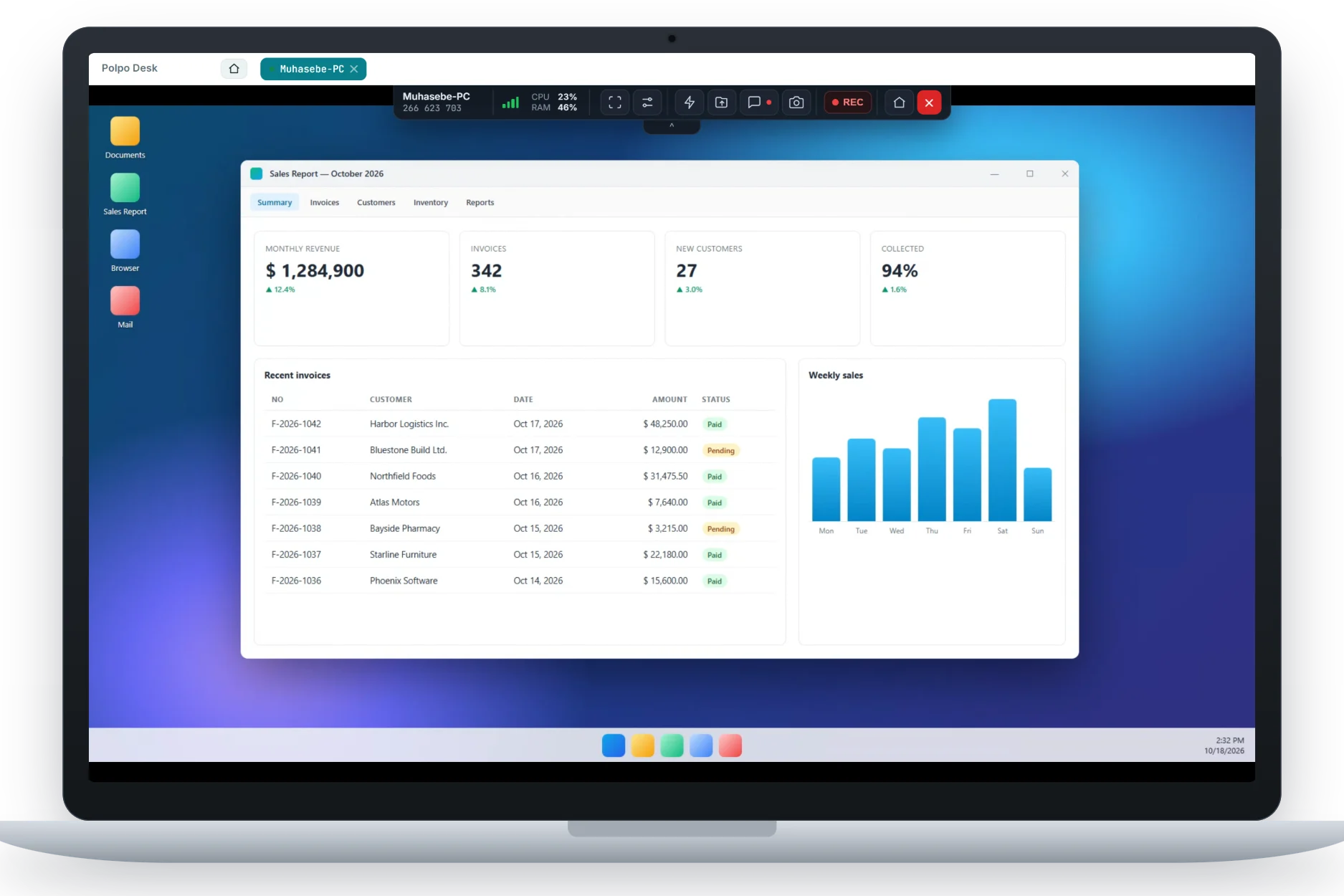
Polpo Desk reduces this to a simple flow: the person who needs help opens the small Windows client, shares the 9-digit device ID and one-time password, and approves the incoming request on their own screen. Seconds later, the desktop is in front of you. The image is encoded with multi-threaded H.264 and its quality adapts to network conditions on its own.
Who uses it, and for what?
Remote desktop is not tied to one industry; it helps whenever support depends on seeing the screen.
IT and help desk teams
Inspect problems on employees' computers as if you were sitting there, install software and apply updates. Closing a ticket no longer means walking from desk to desk.
Software support teams
Reproduce the error a customer is seeing on their own screen, point to the right settings and explain the fix live.
Service providers and resellers
Maintain the systems you installed without travelling, and reach several customers in a single day at no travel cost.
Family and friends
Set up a relative's email or fix a friend's computer with the free plan for personal use.
Training and product demos
Show step by step how an application works on the other person's screen. More than one operator can join the same session when needed.
Multi-screen workstations
See every monitor on the remote side and switch between them with one click; large desktop setups are no obstacle.
Your first remote desktop session in four steps
No complicated setup: most people make their first connection within a few minutes.
-
Create your account
Sign up for free at polpodesk.com, then open the operator app or the browser console.
-
Run the client
The person who needs help downloads and opens the Windows client. A device ID and one-time password appear on screen.
-
Connect with the ID
Enter the 9-digit ID and password. The other side sees an approval card with your name and company, and accepts the request.
-
Work, then disconnect
Take control, send files, chat. When you are done, end the session; it is recorded in the session history.
Security from the very first moment
Opening a desktop remotely takes trust on both sides. Polpo Desk backs that trust with technical safeguards and clear rules.
-
End-to-end encryption
Video and control data are end-to-end encrypted with WebRTC's DTLS-SRTP protocol. Session content is neither visible to nor stored on our servers.
-
User approval for every connection
In attended sessions the other side sees the connecting operator's name and company; their screen is not shared without approval.
-
One-time password
The one-time password shown for ad-hoc support is not a permanent key, so it does not leave the door open once support is over.
-
Records and accountability
Which operator connected to which device, when and for how long is kept in session history and audit reports, exportable to Excel or PDF.
Which devices does it run on?
The computer receiving help needs the Windows client; the person helping only needs the desktop app or a browser.
-
Available now
Windows client
A native, signed app for the computer that receives support. Supports Windows 10, Windows 11 and Windows Server.
-
Available now
Windows and macOS operator app
The desktop app for the person giving support: device list, session tabs and every session tool in one place.
-
Available now
Browser-based operator console
Sign in and connect from a desktop or mobile browser without installing anything.
-
On Google Play
Android operator app
Connect to computers and Android TVs from your phone: touch mouse, smart keyboard, clipboard and file transfer.
-
Coming soon to Google Play
Android phone and Android TV client
View Android screens remotely, control them once accessibility permission is granted, and drive TVs with a virtual remote.
Connecting to iPhone and iPad devices is not supported at the moment. Current download options are listed on the Downloads page.
Why Polpo Desk?
A light client that opens fast
The person needing help does not install a large package; the small, signed Windows app is ready in seconds.
Smooth picture
Multi-threaded H.264 encoding and adaptive bitrate keep sessions usable even on weak connections.
Every tool in one window
File transfer, two-way clipboard, chat, Ctrl+Alt+Del and monitor selection are right there in the session toolbar.
Built for teamwork
Share support work with an address book, groups, favorites and roles, and let several operators work in the same session when needed.
A transparent approach to data
We process personal data in line with KVKK and GDPR, and session content stays encrypted even while it passes through our infrastructure.
In your language
The interface comes in six languages with light and dark themes. The product is developed and supported in Türkiye.
Frequently asked questions
Does the other person need technical knowledge for a remote desktop connection?
No. All they have to do is open the Windows client, tell you the ID and password shown on screen, and approve the incoming connection request.
Is Polpo Desk free?
There is a free plan for personal use. Businesses can choose a paid plan for needs such as more operators, team management and reporting. Current plans are listed in the pricing section of the home page.
Is the connection secure, and can anyone else watch the session?
Video and control data are end-to-end encrypted with WebRTC DTLS-SRTP. Our servers only help establish the connection; they cannot see or store session content.
Which operating systems can I connect to?
Today you can connect to computers running Windows 10, Windows 11 and Windows Server. The Android phone and Android TV client is coming soon to Google Play. Remote control of iPhone and iPad is not supported.
What if the remote computer has more than one monitor?
You see every screen and switch between them with one click from the session toolbar.
Will the session be usable on a slow internet connection?
Polpo Desk automatically adjusts resolution, frame rate and bitrate to network conditions. It lowers quality to stay smooth when the connection weakens and sharpens the image again as speed improves.
Can I connect to a computer on the same office network without the ID?
Yes. On the same local network you can connect by IP address or computer name; password and approval steps still apply. This option can be turned off in the client settings.
Other solutions
Try remote desktop today
Create your free account, download the Windows client and start your first secure session within minutes.