
Remote work: your office desktop goes wherever you go
When you work from home, a job site or another city, you still need the programs, files and settings on your office computer. Polpo Desk builds a secure bridge to that machine so you can carry on where you left off, on the desktop you know.
Free for personal use · No credit card required · 6 languages
A practical answer for hybrid and remote teams
A lot of work is still tied to a particular computer in the office: a licensed accounting program, a file server on the local network, or an admin screen that only opens from the company network. Moving all of it to the cloud is not always possible or affordable.
With Polpo Desk you install the client on the office computer once and set a permanent password. From then on you connect to that machine from your laptop at home, using the operator app or a browser. The screen comes to you; the data stays on the office computer.
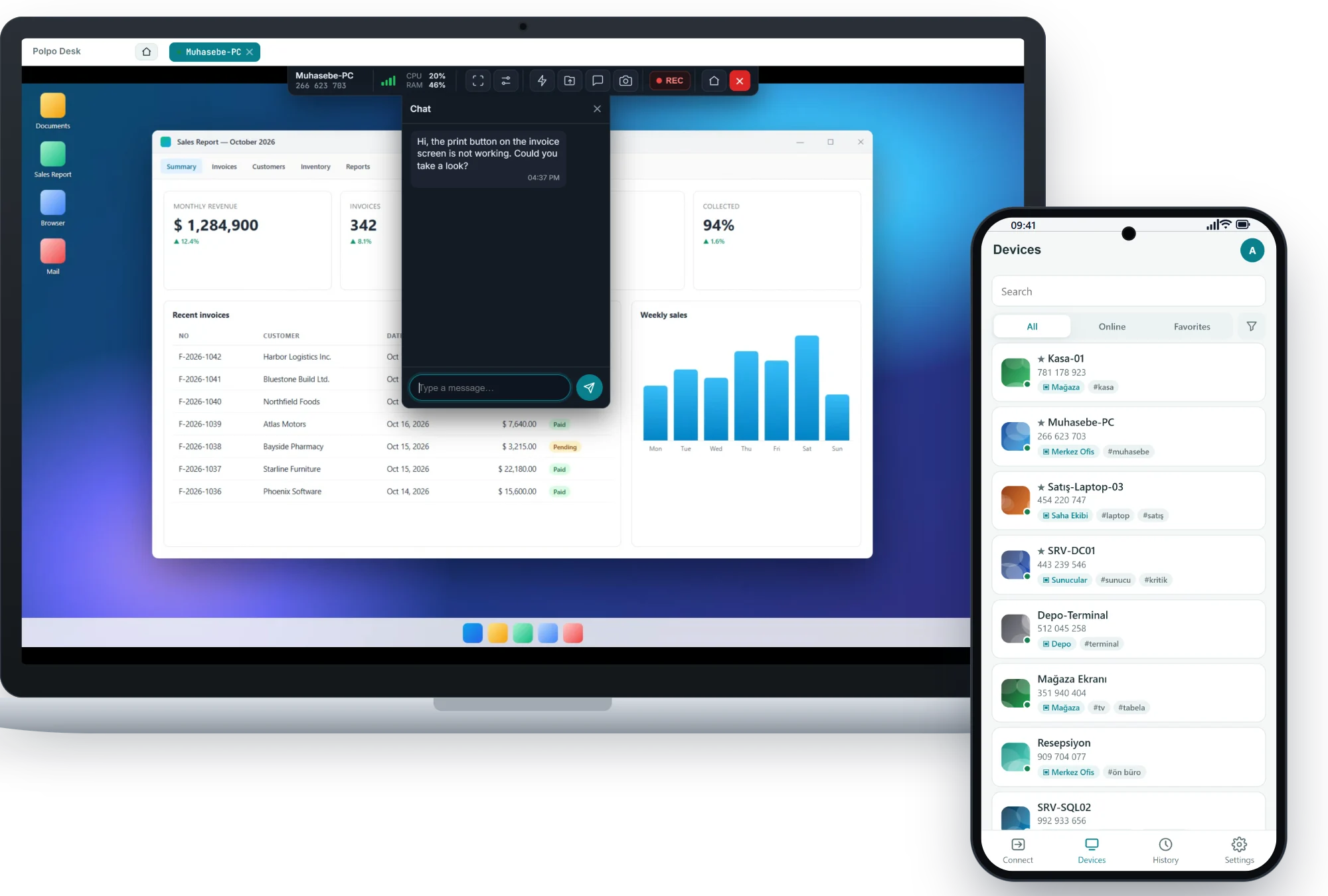
What can you do with Polpo Desk while working remotely?
With a reliable connection to the office computer, most everyday tasks work from home just as they do at your desk.
Reach your office PC from home
Install the client as a service and set a permanent password, then connect to your desktop whenever you like, even with nobody in front of it.
Hide the screen at the office
With the privacy screen on, the office monitor goes dark and shows a notice, while you keep seeing the real desktop.
Take your files with you
Pull a presentation or report you left at the office to your own computer with two-way file transfer inside the session.
IT support for distributed teams
Fix a home-based employee's printer, email or software problem with their approval, without travelling to them.
Restart after updates
Send a remote restart; when the computer in service mode boots up again, the session reconnects by itself.
Quick hops inside the office
Connect to a computer on the same network by IP address or computer name, and reach your own desk machine from the meeting room.
Get your office computer ready for remote work
After a one-time setup, connecting takes just a few clicks.
-
Account and team
Create your free account. If you use it as a company, invite your colleagues and assign their roles.
-
Client on the office PC
Install the Windows client on the office computer and enable service mode so it stays reachable after restarts.
-
Permanent password
Set a strong permanent password for unattended access and add the device to your address book.
-
Connect from home
Click the device in the Windows or macOS operator app or the browser console, and your desktop appears on screen.
Protect company data while working remotely
Working remotely does not have to mean moving company data out of the office. Files stay on the computer; you only see and operate the screen.
-
End-to-end encrypted session
Video and input are encrypted with DTLS-SRTP. If a direct connection cannot be made and traffic goes through a relay server, the content remains encrypted.
-
Against curious eyes at the office
The privacy screen keeps what you are doing from showing on the office monitor while you work from home.
-
Separate roles and permissions
Use admin and operator roles in the web panel's team management to decide who on the team can do what.
-
Traceable access
Audit logs show which user connected to which device and when; managers can export reports to Excel or PDF.
Whatever device you use at home
The Windows client runs at the office; at home you connect from your Windows or macOS computer, or from a browser.
-
Available now
Windows client
A native, signed app for the computer that receives support. Supports Windows 10, Windows 11 and Windows Server.
-
Available now
Windows and macOS operator app
The desktop app for the person giving support: device list, session tabs and every session tool in one place.
-
Available now
Browser-based operator console
Sign in and connect from a desktop or mobile browser without installing anything.
-
On Google Play
Android operator app
Connect to computers and Android TVs from your phone: touch mouse, smart keyboard, clipboard and file transfer.
-
Coming soon to Google Play
Android phone and Android TV client
View Android screens remotely, control them once accessibility permission is granted, and drive TVs with a virtual remote.
Connecting to iPhone and iPad devices is not supported at the moment. Current download options are listed on the Downloads page.
Why Polpo Desk for remote work?
Desktop access without a VPN
You do not need to set up a separate VPN to reach the office computer; the connection is established in encrypted form through the Polpo Desk infrastructure.
The desktop you are used to
Your programs, shortcuts and folder layout stay the same; at home you are working on the very same computer.
A privacy mode that hides the real screen
In open-plan offices and shared spaces, it stops your remote work from appearing on the office monitor.
Multi-monitor support
If you use two screens at the office, you see both remotely too and switch between them with one click.
One panel to manage it all
Devices, users and session reports live in the same web panel, where you handle changes in your team.
Plans that grow with you
Start with the free plan for personal use and move to a business plan as your team grows.
Frequently asked questions
Can I connect when my office computer is switched off?
No; the computer must be on and connected to the internet. A client in service mode comes online automatically when the computer starts, and after a restart sent from Polpo Desk the session reconnects by itself.
What does the office screen show when I connect from home?
If you turn on the privacy screen, the office monitor goes dark and displays a notice while you keep seeing the real image. With the privacy screen off, the office monitor shows the desktop as usual.
Do I need a VPN?
No VPN is needed to connect to the office computer with Polpo Desk. Because the office computer still has access to its local network, you can use the resources on that network through the remote desktop.
I use a Mac at home and the office computer runs Windows. Does that work?
Yes. You can connect to your Windows office computer with the macOS operator app. The browser-based operator console is another option.
Can we see which computer our employees connected to, and when?
Yes. Session history and audit reports in the web panel include the operator name, device, date and duration; you can filter them and export to Excel or PDF.
How do I get files from the office computer to my home computer?
During a session you can send and receive files in both directions with file transfer. For short text, links and commands, the two-way clipboard is enough.
Other solutions
Remote Desktop
Connect to computers live; see the screen and control it with mouse and keyboard.
Learn moreRemote Access
Unattended access to computers and servers with no one in front of them.
Learn moreMobile Device Support
Support Android phones and TVs, and connect to computers from your phone.
Learn moreGet your team ready for remote work today
Start for free, install the client on the office computer and enjoy a smooth first day of remote work.