Is Someone Remotely Connected to My Computer? How to Tell and How to Block It
Is someone connected to your computer remotely? Warning signs, step-by-step checks on Windows and macOS, how to block remote access and what to do after a scam call.
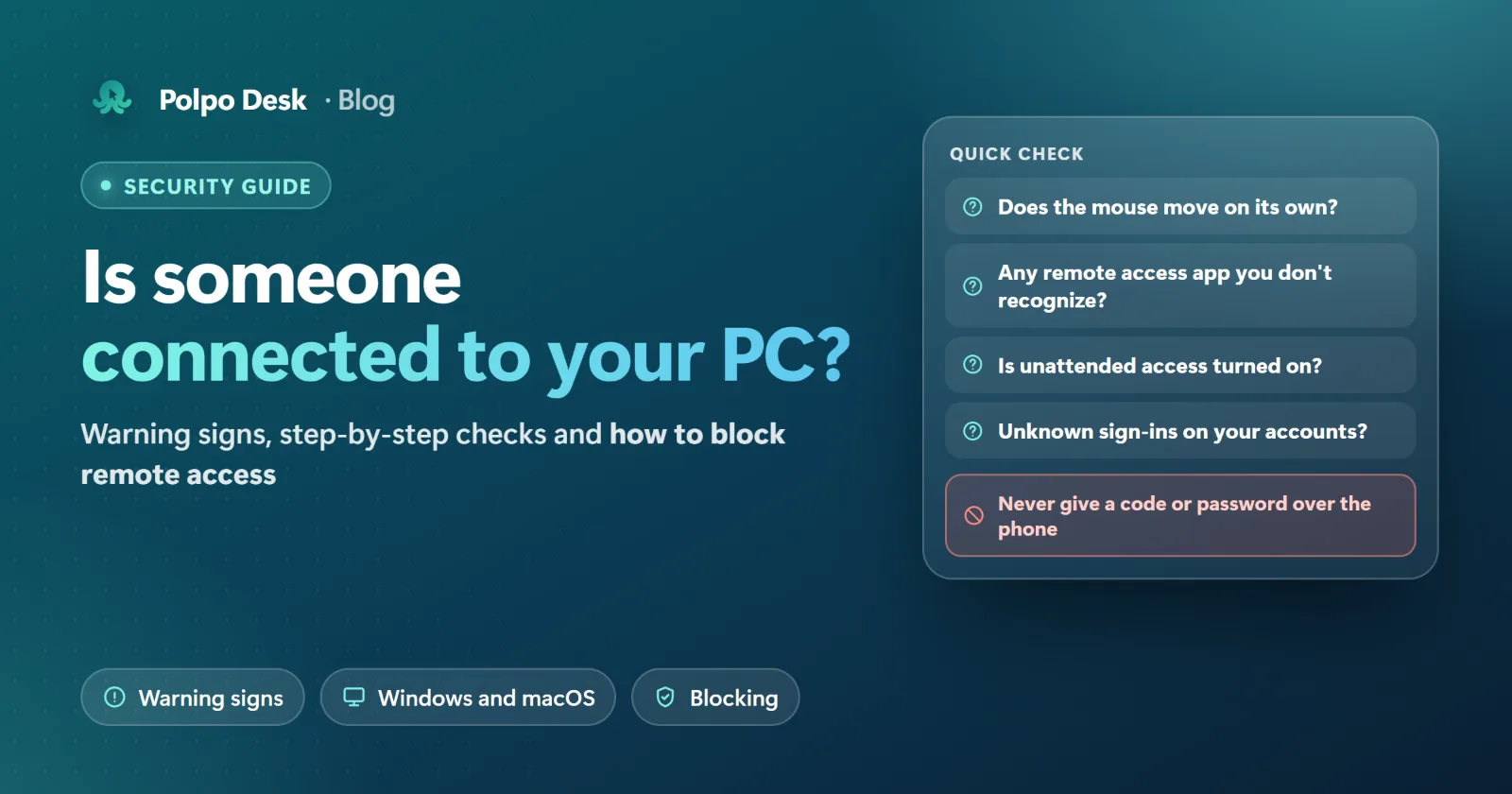
Did the mouse move on its own? Did a window you don't recognize pop up? Or did someone on the phone say "install this program and we'll help you", and now you're uneasy? This guide explains how to tell whether someone is remotely connected to your computer, how to check step by step on Windows and macOS, and how to block remote access.
Could someone be connected? Warning signs
- The mouse pointer moves without you touching it, and windows open or close on their own.
- There's a remote access panel or notification in a corner or along the edge of the screen saying things like "connected" or "sharing screen".
- A remote access program you don't remember installing shows up among the icons next to the clock.
- Your email, bank or social media accounts show sign-ins or actions you didn't make.
- Someone on the phone asked you for a code, an ID or a password, and you gave it.
Slowness or fan noise alone isn't proof; updates and browser tabs cause that too. If any of the signs above apply, move on to the steps below.
If a suspicious connection is happening right now: do this first
- Disconnect from the internet. Turn off Wi-Fi or unplug the network cable. The other person loses your computer immediately.
- Close the remote access program. Right-click its icon in the taskbar or next to the clock and quit.
- If money or passwords are involved, call your bank right away. Have your cards and online banking frozen.
- Change your passwords from another device you trust. Start with email, then banking and other accounts.
Step-by-step checks on Windows
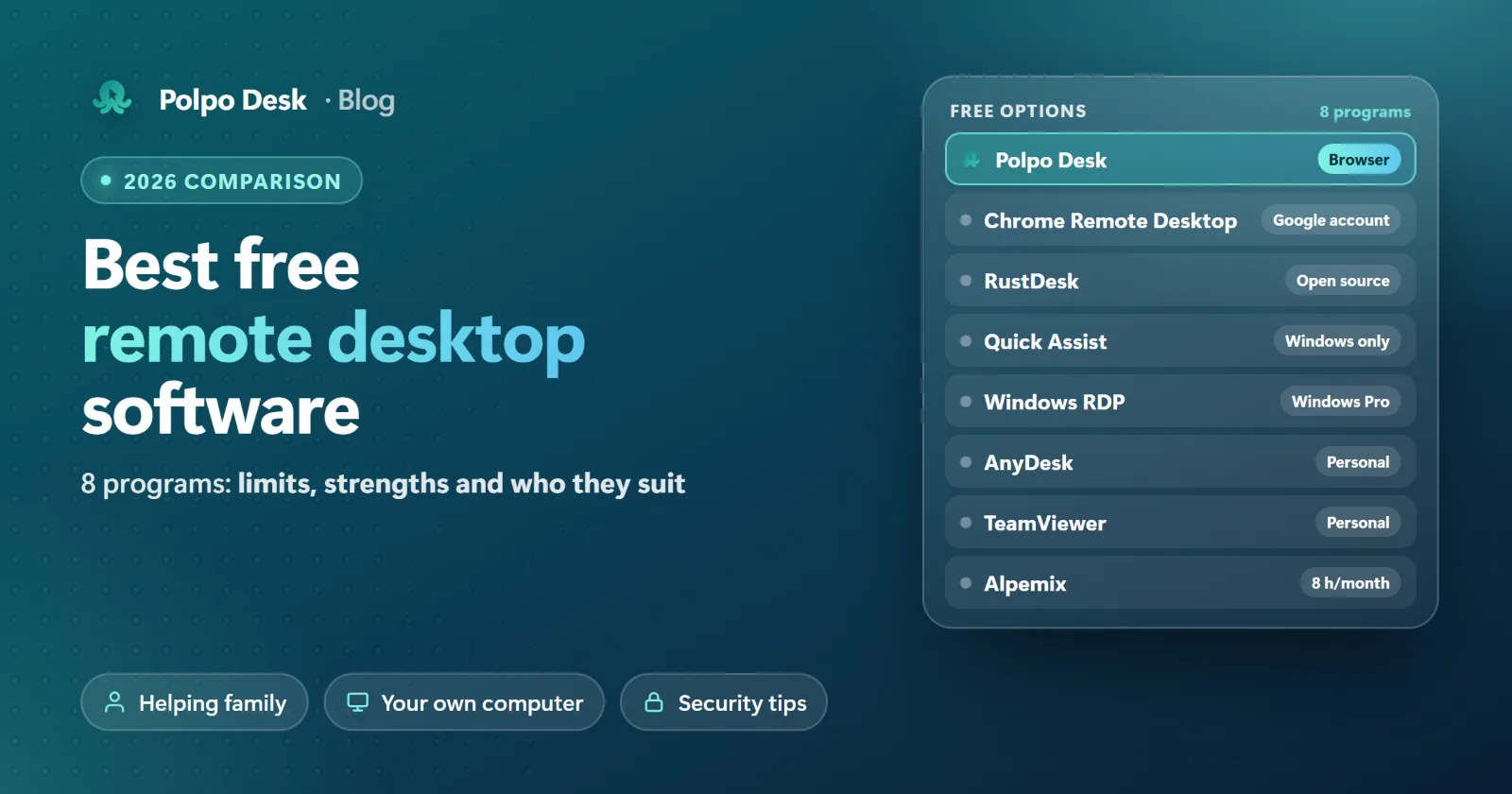
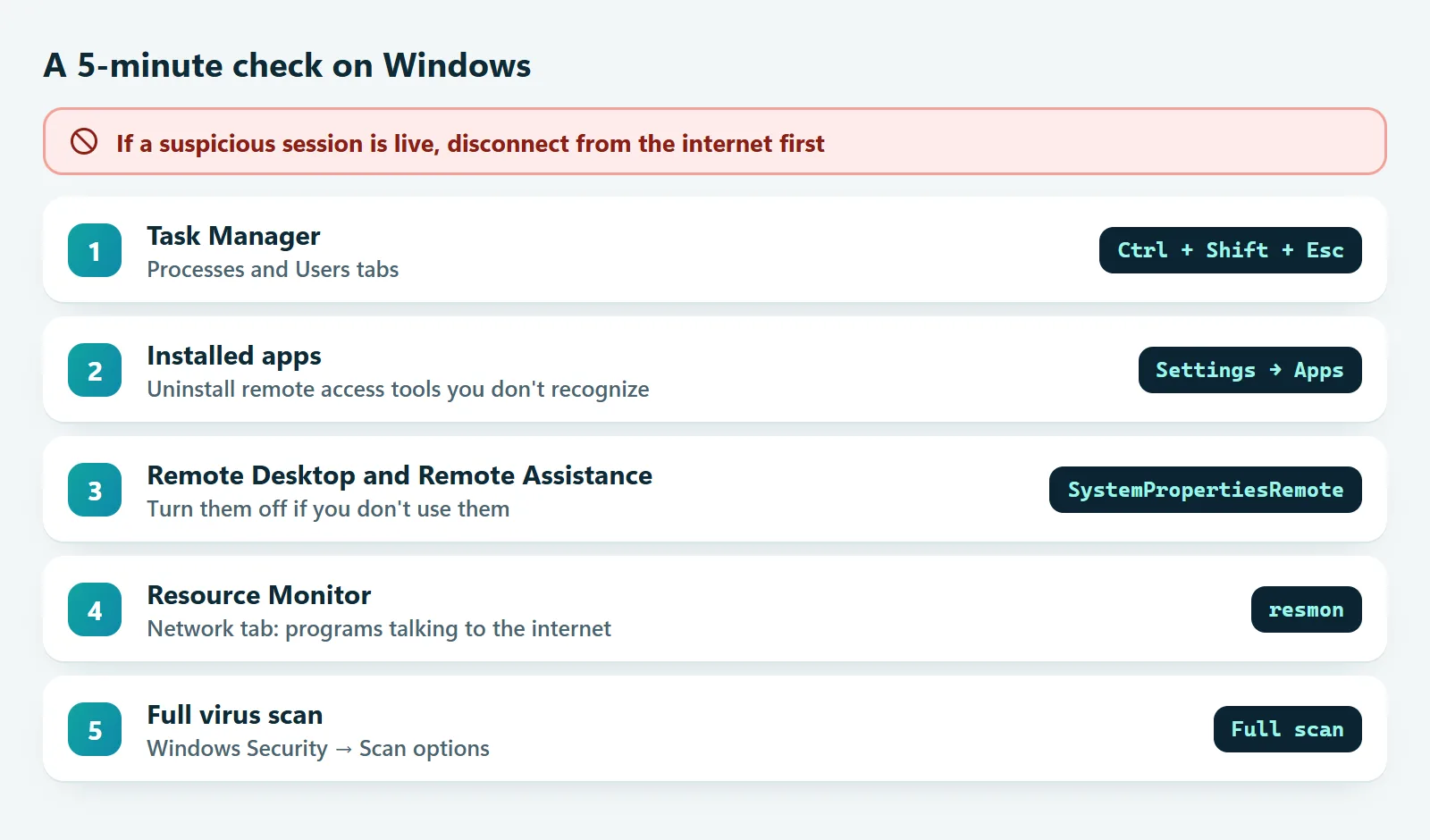
- Open Task Manager (Ctrl + Shift + Esc). On the Processes tab, look for AnyDesk, TeamViewer, RustDesk, Chrome Remote Desktop, Quick Assist or any remote access program you don't recognize. On the Users tab, check whether anyone other than you is signed in.
- Review installed apps: Settings → Apps → Installed apps. Uninstall remote access programs you don't remember installing.
- Check what starts with Windows: Task Manager → Startup apps. Disable programs you don't recognize.
- Turn off Windows' own remote access: on Windows Pro, Settings → System → Remote Desktop should be off. For Remote Assistance, press Win + R, type
SystemPropertiesRemoteand, on the Remote tab, clear the box that allows Remote Assistance connections. - Look at network connections: press Win + R and run
resmonto open Resource Monitor. The Network tab shows which programs are talking to the internet; note any unfamiliar remote access program and uninstall it. - Run a full virus scan: Windows Security → Virus & threat protection → Scan options → Full scan. If you're still worried, also run the Microsoft Defender Offline scan.
Checks on macOS
- System Settings → General → Sharing: screen sharing, remote management and remote login should be off unless you use them. If remote management is on, it can control screen sharing too, so turn both off.
- System Settings → Privacy & Security: review the apps allowed screen recording and accessibility access. Remote access programs rely on these permissions; remove access for anything you don't recognize.
- Activity Monitor (Applications → Utilities): check for unfamiliar remote access programs, then delete the app from the Applications folder.
A quick check on Linux
You can see remote access services and established connections from the terminal:
systemctl list-units --type=service --state=running | grep -Ei 'xrdp|vnc|anydesk|teamviewer|rustdesk|ssh'
ss -tnp state established
Turn off a service you don't use with sudo systemctl disable --now <service>.
Blocking remote access for good
- Uninstall remote access programs you don't use. A tool installed once for a support call can stay active for months.
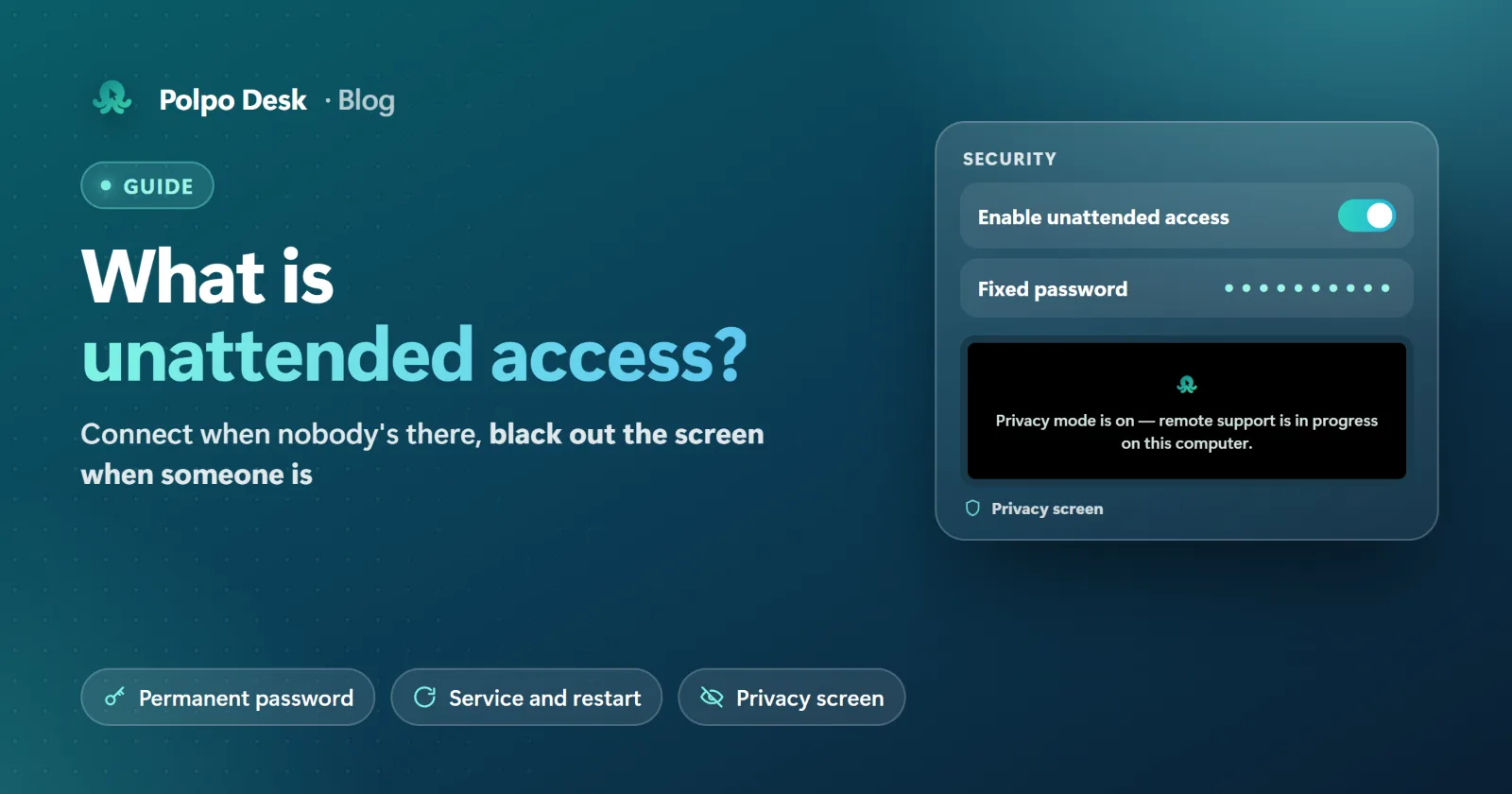
- Turn off unattended access. Keep permanent passwords and auto-accept settings on only if you really need them.
- Don't open ports. Exposing ports like 3389 (RDP) or 5900 (VNC) on your router invites automated attacks.
- Keep your system and apps up to date. Updates close security holes.
- Use strong passwords and two-step verification on your computer account, your email and your remote access account.
- Use a standard (non-admin) Windows account for everyday work. Windows then asks for the admin password when something tries to install.
The most common scenario: phone scams
Remote access usually starts not with a security hole but with a phone call. The caller claims to be from your bank, a delivery company, your carrier, Microsoft or a government agency and says "there's a problem with your account, install this program and read me the code". Remember: banks and agencies don't call you to install remote access software, and they don't ask for codes or passwords.
If you installed such a program and gave the code:
- Disconnect from the internet and uninstall the program.
- Call your bank immediately and have your cards and online banking frozen.
- Change your passwords from another device and turn on two-step verification.
- Run a full virus scan.
- Report it to the police. Keep call logs and screenshots.
If you use Polpo Desk: you always see who's connected
We make Polpo Desk, and we built in these rules so the person at the computer never loses control:
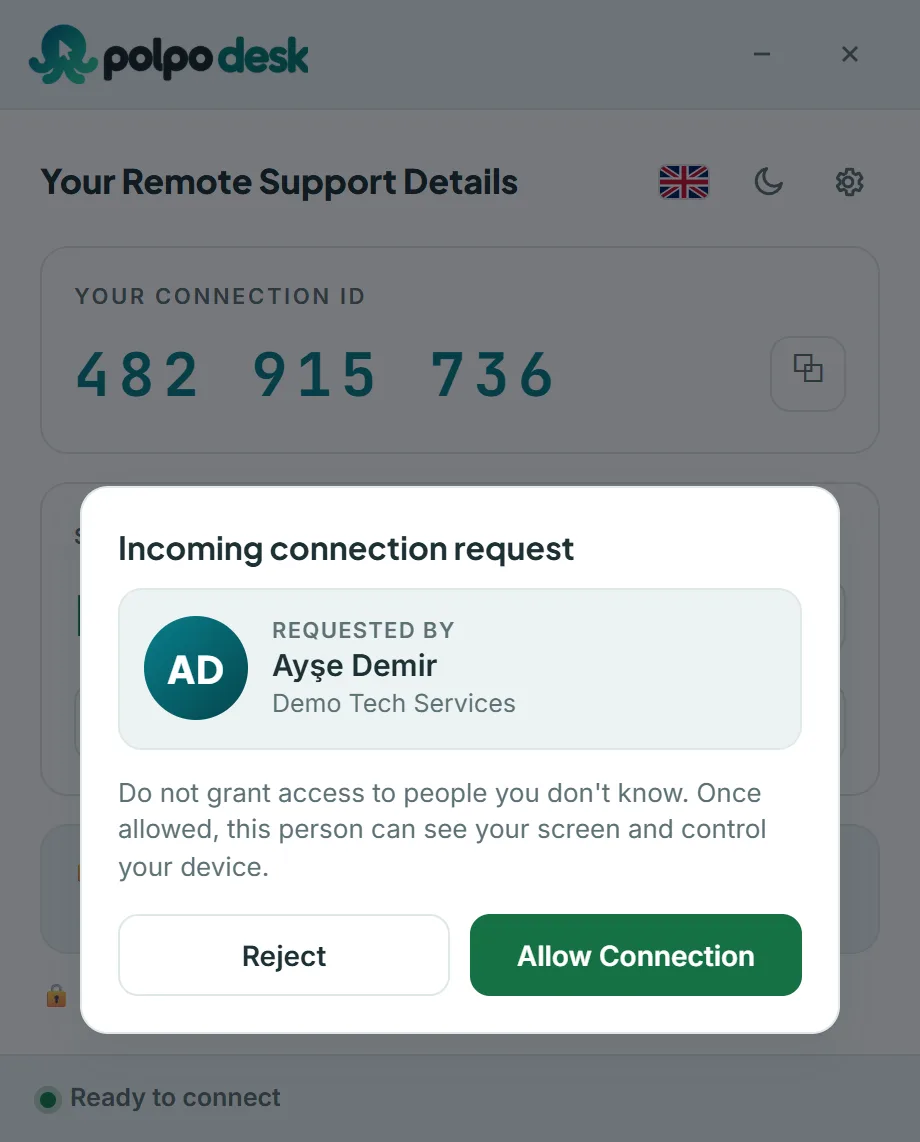
- Nobody connects without your permission. Every connection without a password opens an approval window showing the person's name, company and profile photo. There's no setting that turns this window off.
- Unattended access is off by default. Permanent access only works if you turn it on in the client's Security settings, and you turn it off in the same place.
- Everyone connected is visible. The status line shows how many operators are connected (for example, Sharing screen (2)). From the Connected operators list you can end anyone's connection instantly with Disconnect.
- Recording isn't hidden. If an operator records the session, a red notice appears on screen.
- Passwords are verified on your computer. Our servers never see them. After repeated wrong passwords, password connections are temporarily locked.
If you no longer use Polpo Desk, remove it from the client's settings with Remove from this computer on the General tab. Details: Client security settings, Uninstalling the Windows client.
Frequently asked questions
Is Remote Desktop Connection a virus?
No. Remote Desktop Connection (mstsc) is part of Windows. But if you don't use it, keep incoming remote desktop connections turned off and never expose the RDP port to the internet.
Can someone connect while my computer is off?
Not to a computer that's switched off. A computer that's asleep or left on can be reached if a setting that allows connections when nobody's there is turned on. That's why you should enable unattended access only when you need it.
Do I need to reinstall Windows?
Usually not: uninstalling the remote access program, running a full scan and changing passwords is enough. If unfamiliar programs keep coming back or the scan finds malware, back up your data and reset the system; that's the safest route.
How can I tell if my phone is being accessed remotely?
On Android, a notice appears in the status bar while the screen is being shared or recorded. Check which apps have permission under Accessibility in Settings, and uninstall remote access apps you don't recognize.
Conclusion
If you're suspicious, disconnect from the internet first, then check programs and settings. The most effective ways to block remote access are to uninstall tools you don't use, turn off unattended access and never give a code or password to someone you don't know. When you do need remote support, choose a tool that always shows who's connected and lets you end the connection with one click.