What Is Unattended Access? A Guide to Connecting to a Computer When Nobody's There
What unattended access is, when to use it and how to set it up safely: permanent password, service, remote restart and a privacy screen for the remote display.
You might need a file on your office computer in the evening, an update installed on a server overnight, or a look at a branch's till computer when nobody's around. You can't wait for someone to click an approval button every time. The feature for this is called unattended access. This guide explains what it is, when to use it, how to turn it on in Polpo Desk and how to keep it secure. At the end we look at a companion feature: the privacy screen, which blacks out the remote display while someone is sitting at it.
What is unattended access?
Unattended access means connecting to a computer nobody is sitting at, without waiting for approval. It needs a fixed password set on that computer in advance and a remote access service that starts on its own when the computer boots. Other tools may call it a "permanent password" or "connect without approval".
| Regular support | Unattended access | |
|---|---|---|
| At the computer | Someone is there | Maybe nobody |
| Who allows the connection? | The person at the screen approves or shares a one-time password | A permanent password set in advance |
| Password | Changes every time | A fixed password you choose |
| Typical use | Quick help for family or a customer | Your own computer, servers, branch and till computers |
When is it useful?
- Reaching your own work computer from home or on the road.
- Servers and always-on machines: maintenance and updates on devices nobody sits at.
- Branch, store and till computers: fixing things after hours without interrupting work.
- Customers you maintain regularly: by agreement, supporting them without waiting for approval each time.
Turning on unattended access in Polpo Desk
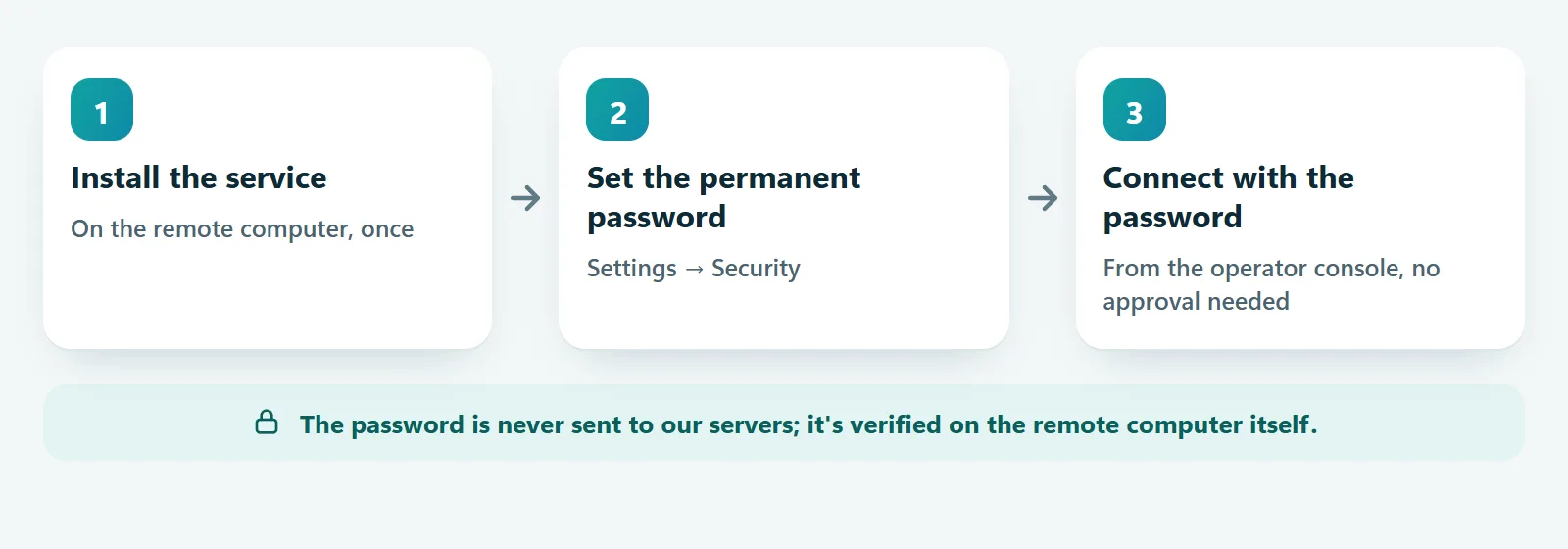
Unattended access is used on Windows computers. You only need to do the first two steps once, on the computer you'll connect to.
- Install the service. Open the Polpo Desk client. If you see Service not installed for admin support at the top, click Install and approve the Windows admin prompt. The service lets Polpo Desk run when Windows starts, even before anyone signs in, and shows you User Account Control (UAC) and admin screens too.
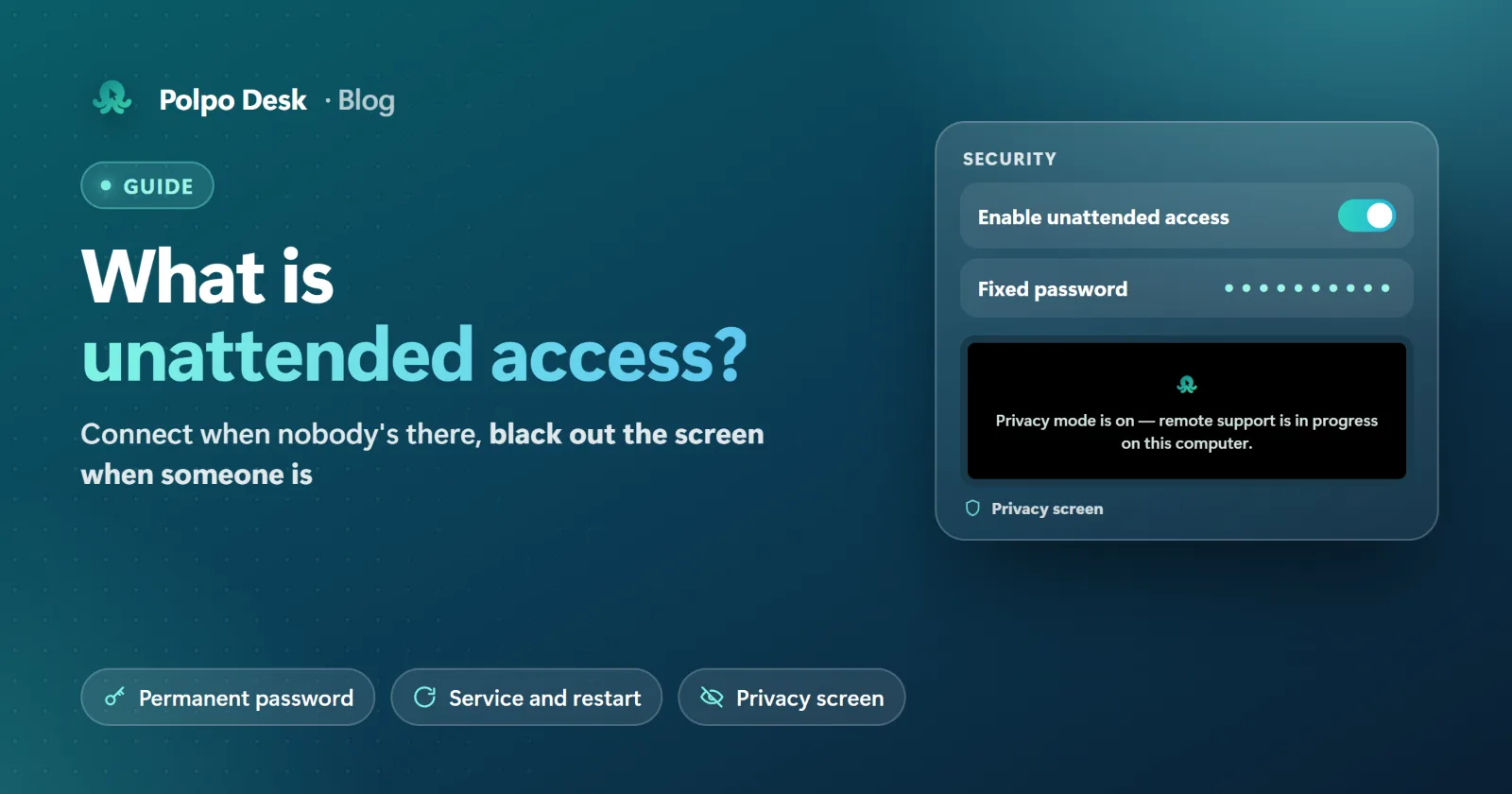
- Set the permanent password. Go to Settings (gear) → Security, type the password in Fixed password and click Set. The Enable unattended access switch turns on. This step needs a Windows account with admin rights.
- Connect. In the operator console, type the computer's 9-digit ID, enter the permanent password in the window that opens and click Connect with Password. If the password is right, the session opens without waiting for approval.
Don't type the password every time
With Remember details for this device on in the console, the permanent password is stored encrypted only on your own computer (in the web console, in that browser); it's never sent to the Polpo Desk server. If the password on the remote computer changes, the console forgets the old one and asks for approval.
Sign-in screen or desktop?
With the service installed, you can use the Session to show option when connecting to pick the signed-in user's desktop or the Windows sign-in screen. During the session you can switch between them from the Actions menu.
Remote restart
With the service installed, you can restart the computer from inside the session after an update (Actions → Restart computer). When it boots, the console reconnects on its own without a password or approval. That permission belongs only to the operator who gave the command and is valid for 15 minutes. The restart happens immediately, so make sure open work is saved.
6 rules for keeping unattended access secure
- Choose a long, unique password. Polpo Desk requires at least 4 characters, but that's only the minimum. Don't reuse a password from elsewhere.
- Turn it on only where you need it. Not every computer needs to accept connections when nobody's there.
- Share the password with as few people as possible. Anyone who knows it can connect without approval.
- Turn it off when you're done. Switching off Enable unattended access deletes the fixed password so it can't be used anymore.
- Protect your operator accounts. Turn on two-step verification; anyone who gets into a console that remembers passwords can reach those devices.
- Keep track of who connects. Sessions and restarts appear in the web panel's reports under the operator's name.
Polpo Desk also protects itself against brute-force attempts: if the same operator enters a wrong password 5 times in 15 minutes, that operator's password connections are locked for 15 minutes; after 20 wrong attempts in total, the device is closed to everyone for 15 minutes. The password is verified on the remote computer itself, not on a server. If you suspect unauthorized access, see how to tell if someone is remotely accessing your computer.
Privacy screen: blacking out the display while someone's there
There's also the opposite situation: people are sitting at or near the computer, and you need to do something they shouldn't see, like entering an admin password on a branch computer or fixing a file with customer data in an open office. The privacy screen (sometimes called "black screen mode") is made for this.
- All monitors on the remote computer go black with a message in the middle: Privacy mode is on — remote support is in progress on this computer. The team admin can change the text.
- The remote computer's keyboard and mouse are locked; only the operator can turn the privacy screen off.
- You see the desktop without the blackout and keep working.
- When the last operator leaves, the privacy screen is removed automatically.
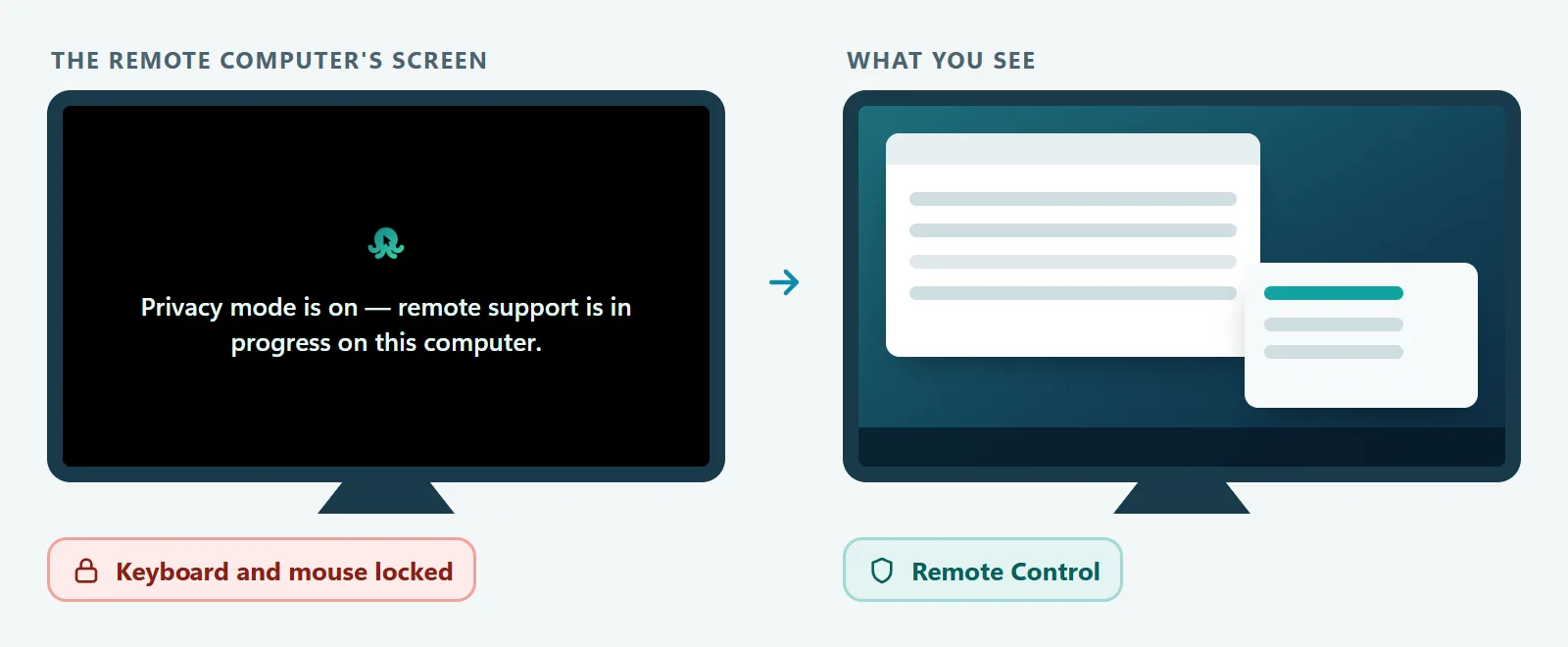
How to turn it on: in the session toolbar, Actions → Privacy screen. Click the same option again to turn it off.
Requirements: the session must be Remote Control, the remote computer must run Windows 10 version 2004 or later, and privacy mode must be included in your plan (it isn't in the free plan). The person at the remote computer can block the feature by turning off Allow privacy screen in the client settings.
Note: the privacy screen isn't shown on secure desktop screens such as UAC prompts and the Windows sign-in screen. Do sensitive work after those screens close. Ctrl + Alt + Del always works.
Which devices does it work on?
Unattended access and the privacy screen described here are for Windows computers. On Linux and Android devices, neither is available; to get support there, the app has to be open and the connection approved by the person at the screen or made with the one-time password.
Frequently asked questions
Is unattended access included in the free plan?
Yes, unattended access works on the free plan too, but the free plan is for personal use only and has a daily time limit. The privacy screen is only in paid plans. Details: Plans and limits.
Can I connect while the computer is off?
No, you can't connect to a computer that's switched off. Once it boots, the service brings Polpo Desk online even before anyone signs in.
I forgot the permanent password. What now?
The password is verified only on the remote computer and can't be read by anyone. Set a new one on the remote computer under Settings → Security.
What does the person at the computer see while the privacy screen is on?
A black screen with the privacy message in the middle. Keyboard and mouse are locked; Ctrl + Alt + Del works. The screen comes back automatically when the session ends.
Conclusion
Unattended access is the most practical way to reach your own computers and the devices you manage when nobody's there. Set up properly, it's safe: a long password, limited sharing and switching it off when you're done are enough. For confidential work while someone is at the computer, use the privacy screen.
Help: Set up unattended access · Help: Privacy screen · Download Polpo Desk