How to Set Up Remote Desktop on Pardus: Step-by-Step Guide
Three ways to connect to Pardus remotely: Polpo Desk, xrdp and VNC. A step-by-step guide with install commands, X11 setup and security tips.
Pardus is a Debian-based Linux distribution from Türkiye, used in public institutions, schools and a growing number of companies. Whether you need to support a colleague, reach your office computer from home or manage a computer lab, there are several ways to connect to Pardus remotely. This guide walks through the three most common methods with install commands and compares which one fits which job.
Which method should you choose?
A quick comparison first; details follow below.
| Polpo Desk | xrdp | VNC (x11vnc) | |
|---|---|---|---|
| Connect over the internet | Works without opening ports | Needs a VPN or port forwarding | Needs a VPN or port forwarding |
| Shows the session on screen | Yes | No, opens a separate session | Yes |
| Encryption | End-to-end, always on | TLS (self-signed certificate) | None by default; use an SSH tunnel |
| To connect you need | The session password or approval from the person at the screen | A Pardus username and password | A VNC password |
| Files and clipboard | Two-way file/folder transfer and shared clipboard | Clipboard; drive redirection for files | Text clipboard only |
| Best for | Remote support, access from outside the office | Using a computer remotely on the local network | Quick screen sharing on the local network |
Before you start: check your session type
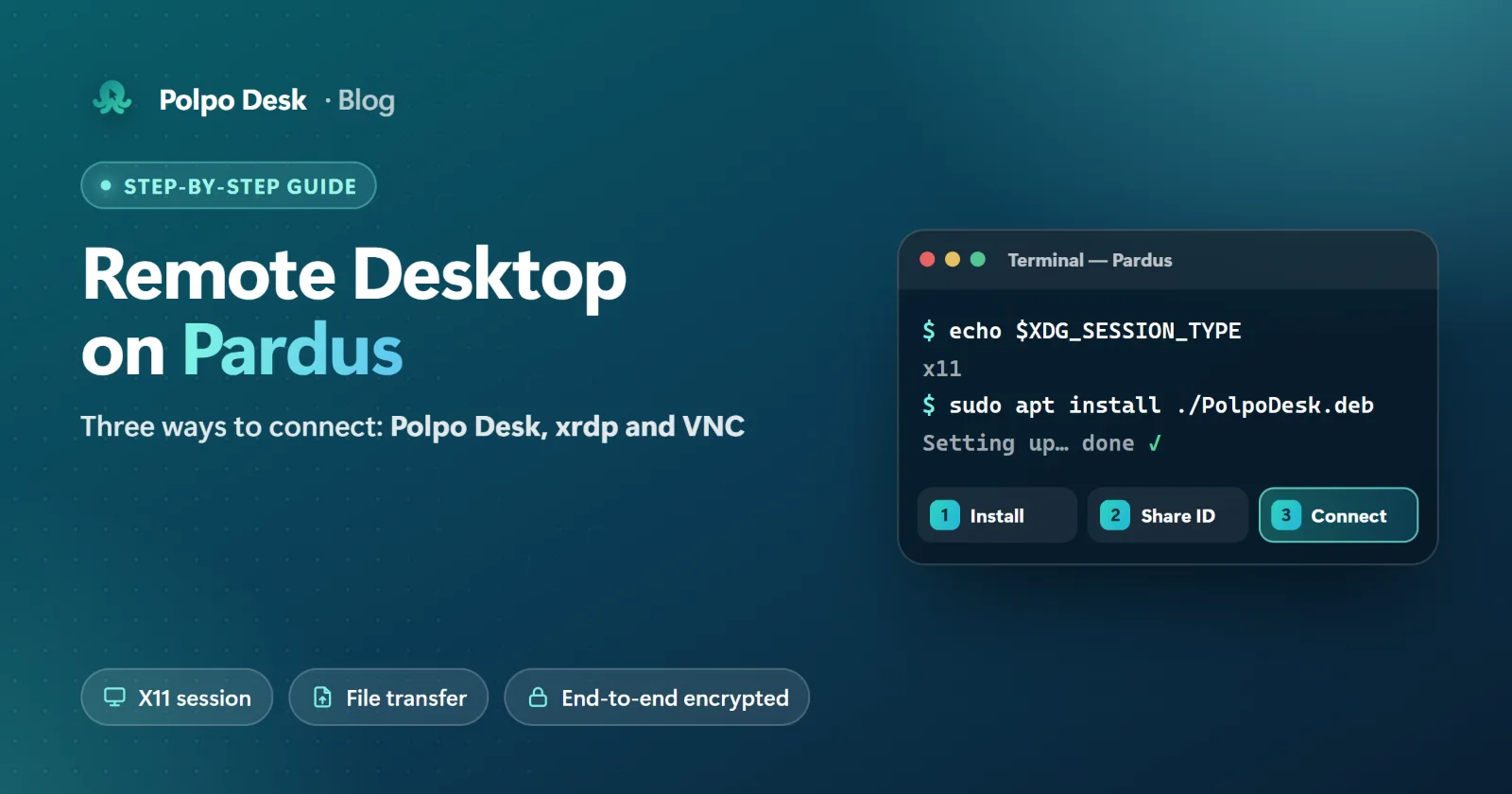
A Linux desktop can run on one of two display systems: X11 (Xorg) or Wayland. Most screen-sharing apps, including Polpo Desk and x11vnc, work in an X11 session. To see which one you are using, open a terminal and type:
echo $XDG_SESSION_TYPEIf the output is x11, you are ready. If it says wayland:
- Pardus Xfce already uses X11, so there is usually nothing to do.
- On Pardus GNOME, sign out, select your user on the login screen and, before typing your password, choose the Xorg (X11) session from the gear icon at the bottom right.
Method 1: Polpo Desk (over the internet, no open ports)
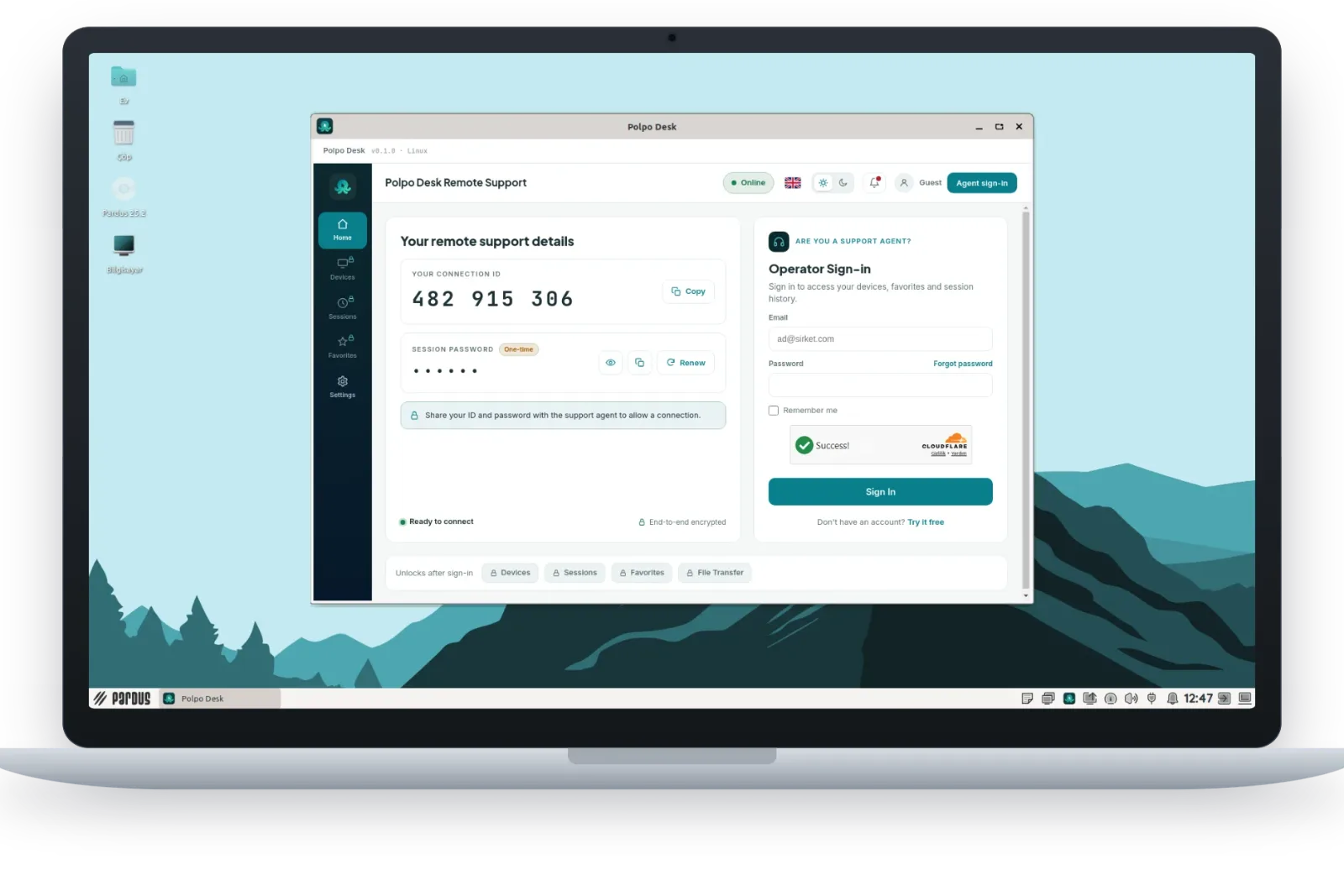
On Pardus, Polpo Desk is a single app: the same window lets you receive support and connect to other computers. Connections work over the internet without opening ports on your router or firewall, and screen, keyboard and file traffic are end-to-end encrypted.
Installation
- Download
PolpoDesk.debfrom the Linux download page. - Double-click the file to install it with the package installer, or open a terminal in its folder and run:
sudo apt install ./PolpoDesk.deb - Open Polpo Desk from the applications menu.
Receiving support
The window shows Your connection ID and the Session password. The person receiving support doesn't need an account. You have two options:
- Share the ID and password: the supporter enters the password and connects directly. Only share the password with someone you trust.
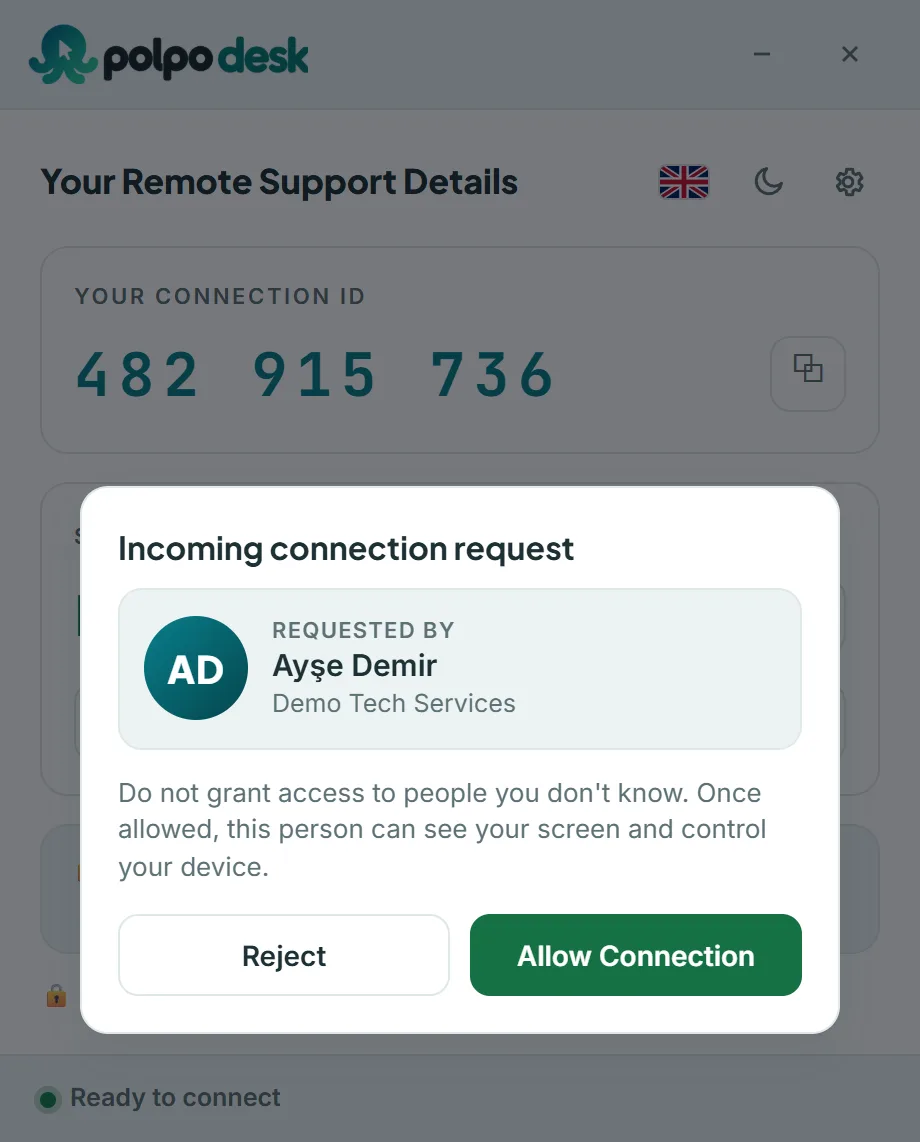
- Share only the ID: the connection request appears on your screen; you see who wants to connect and choose Allow Connection or Reject.
Giving support
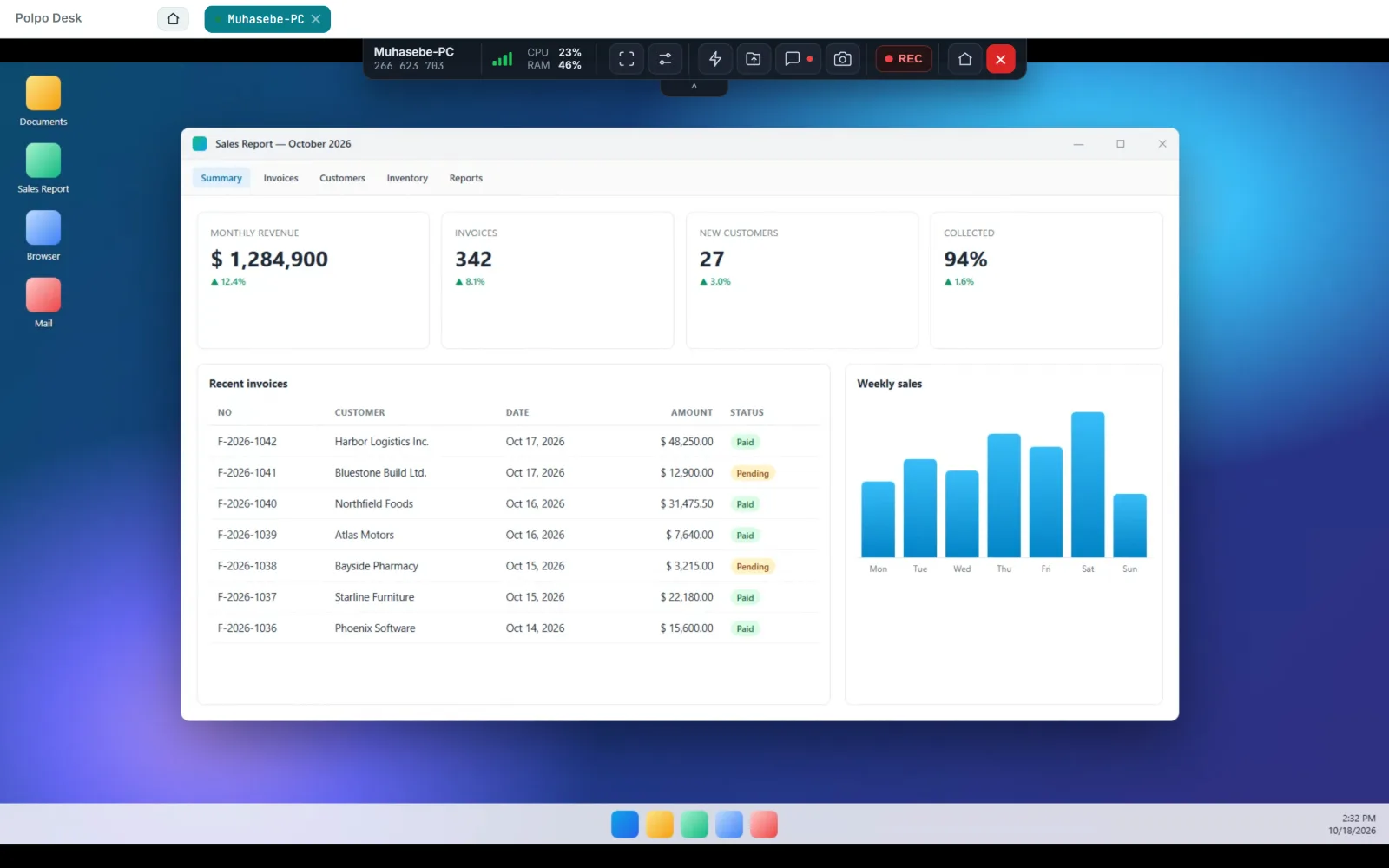
To connect to another computer, sign in with Operator sign-in at the top right and enter the other side's ID. The computer you connect to can run Windows, macOS or another Pardus. Whoever connects to your Pardus machine can also use the Windows, macOS or Android app, or the web console in a browser.
Sessions include mouse and keyboard control (with local characters), two-way file and folder transfer, a shared clipboard and multi-monitor support.
Good to know
Some features are not yet available in the Linux version:
- It doesn't run as a service: to receive support, the app must be open and a user signed in. When you close the window, the app keeps running in the system tray.
- The privacy screen and remote restart aren't available.
- There is no one-click update; to update, install the new package the same way. Your connection ID stays the same.
See the help article Install on Linux and Pardus for details.
Method 2: xrdp (RDP on the local network)
xrdp is an open-source server that lets you reach a Linux computer with Windows Remote Desktop Connection (RDP). It is handy for using Pardus from Windows computers on the same network.
- Install the package:
sudo apt update sudo apt install xrdp - Add the xrdp user to the
ssl-certgroup so it can read its TLS certificate, then restart the service:sudo adduser xrdp ssl-cert sudo systemctl restart xrdp - Check that the service is running:
systemctl status xrdp - Find the Pardus IP address:
hostname -I - On Windows, open Remote Desktop Connection (
mstsc), enter the IP address and sign in with your Pardus username and password.
Keep in mind:
- xrdp doesn't show the session on screen; it opens a new, separate session. If the same user is also signed in at the computer, you may get a black screen; sign out locally first.
- That makes xrdp better suited to using a computer remotely than to helping the person in front of it.
- xrdp usually works more smoothly with Xfce than with GNOME.
- Don't expose the RDP port (3389) to the internet; use a VPN if you need access from outside.
Method 3: Screen sharing with VNC (x11vnc)
x11vnc shares the X11 session currently on screen over the VNC protocol. It is a simple way to take a quick look at a screen on the local network.
- Install the package:
sudo apt install x11vnc - Set a VNC password:
x11vnc -storepasswd - Start sharing as the signed-in user. The
-localhostoption only accepts connections through an SSH tunnel:x11vnc -usepw -display :0 -localhost - From the computer you connect from, open an SSH tunnel (Pardus needs
openssh-serverinstalled) and point your VNC viewer atlocalhost:5900:ssh -L 5900:localhost:5900 user@pardus-ip
- VNC traffic isn't encrypted by default; use an SSH tunnel or run it only on a network you trust.
- x11vnc doesn't work in a Wayland session either; it needs X11.
- With default settings, the person at the screen isn't asked for approval; anyone with the VNC password can see the screen.
5 security tips
- Avoid opening ports. Exposing RDP (3389) and VNC (5900) to the internet invites automated attacks.
- Use strong, unique passwords. Don't reuse them elsewhere.
- Know who is connecting. Share the session password only with people you trust; if in doubt, share just the ID and approve the connection yourself.
- Keep the system up to date:
sudo apt update && sudo apt upgrade - Turn off remote access you don't use. For example, to stop xrdp:
sudo systemctl disable --now xrdp
Frequently asked questions
Can I connect to Pardus from a Windows computer?
Yes. With Polpo Desk you can connect from the Windows app or the web console in a browser. On a local network with xrdp installed, Windows Remote Desktop Connection works too.
Can I connect from Pardus to a Windows computer?
Yes. After signing in as an operator in Polpo Desk, you can connect to Windows, macOS or other Linux computers.
Does it work on Wayland?
On Linux, Polpo Desk currently runs in an X11 session. If you use Wayland, choose the X11 (Xorg) session on the login screen.
Can I connect when nobody is at the computer?
The Linux version doesn't support unattended access or service installation yet. To connect, the app and a user session must be open, and you need the current session password or someone at the screen to approve the connection. For servers that need constant access, xrdp on the local network or over a VPN may be a better fit.
Conclusion
To use a Pardus computer remotely on the local network, xrdp is a good choice; for a quick look at a screen on the same network, VNC may be enough. To support someone over the internet without opening ports, Polpo Desk is the easiest route: install the package, share the ID and connect.