Multiple Operators on One Computer: A Guide to Team Remote Support
Two technicians, one screen: check who's available on the Team card, bring a second operator into the session and learn the rules of working together.
Some problems take more than one person. You need a second pair of eyes on a customer's server, you want to show a new technician how it's done live, or first-line support needs to hand an issue over to a specialist. In Polpo Desk, several operators can connect to the same computer at the same time: each connects from their own console, and the remote computer sends the same picture to all of them. This guide shows how to check who's available on the Team card, bring a second operator into a session, and what the rules are when you work together.
What is multi-operator support good for?
- A second opinion on hard problems: a teammate joins while you're connected, and you solve it together looking at the same screen.
- Escalation: a second-line specialist joins, and the first operator leaves once their part is done. The specialist's session carries on without interruption.
- Training: a new hire connects with View Only and watches an experienced operator work live, with no risk of clicking something by accident.
- Oversight on critical work: a manager can follow a server change or data migration by watching only.
Start with the Team card: who's available?
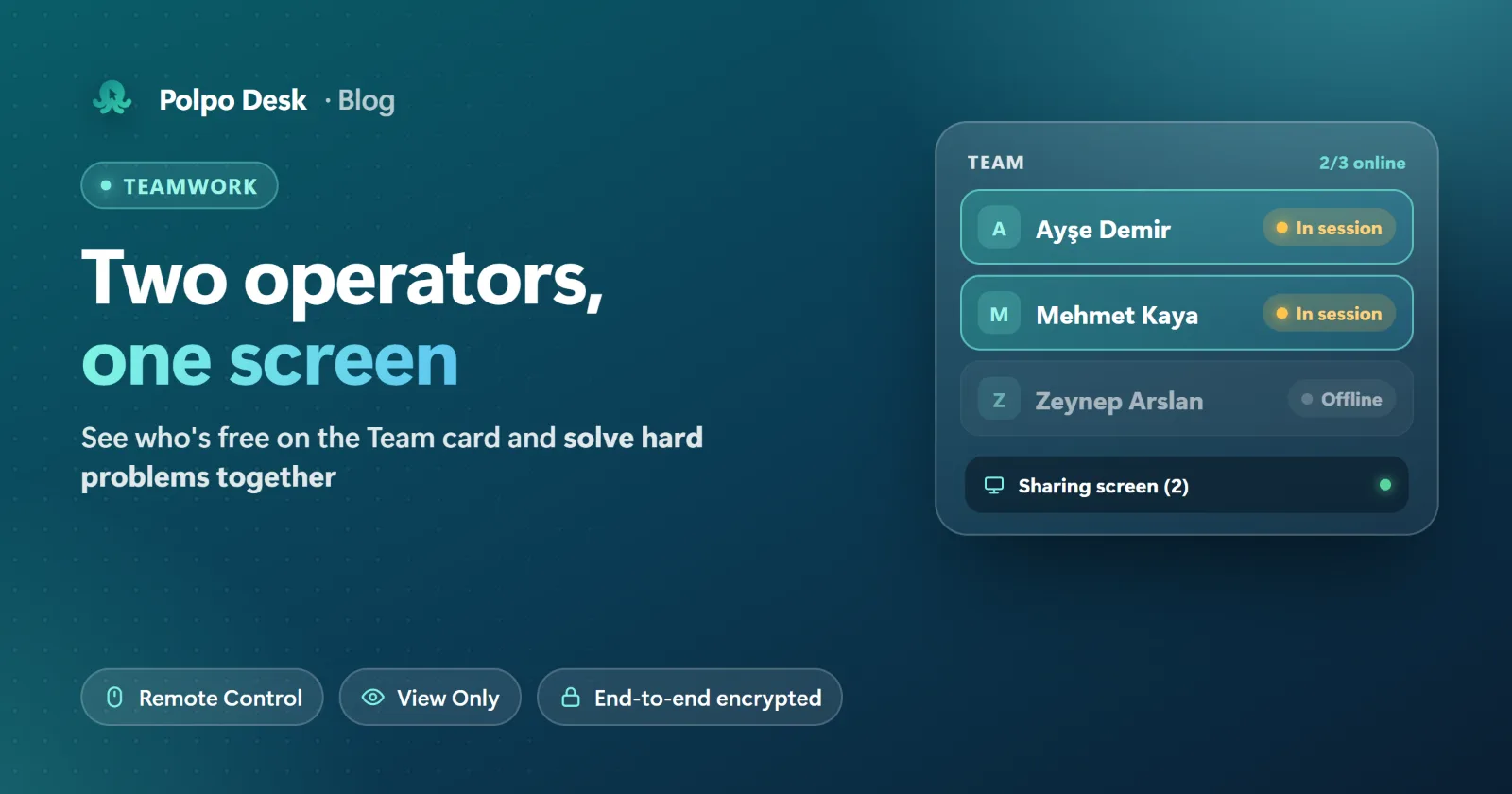
The Team card on the operator console's home page shows whether each operator on your team is Online, Offline or In session. The top-right corner shows how many are online (for example, 1/3 online), and the list updates on its own. You can see whether the person you want to ask has their console open, or is busy with another customer, without sending a message.
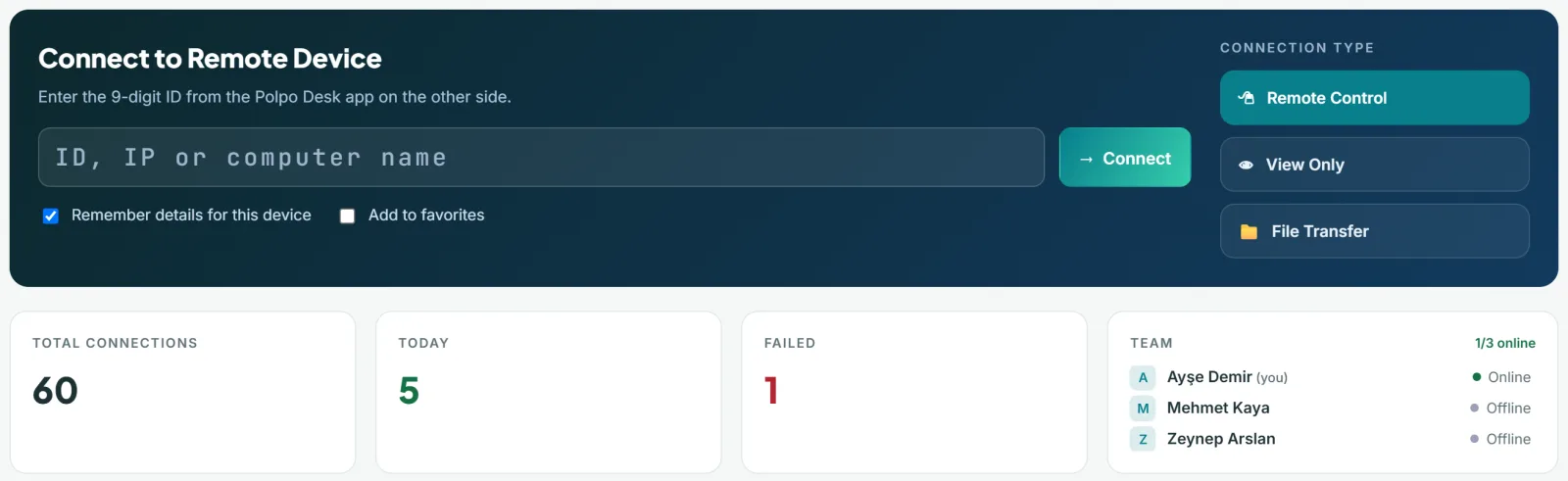
The card lists team members who have accepted their invitation and have an active account. To add operators, an administrator sends an invitation from the Users page in the web panel; see Add users and roles for details.
How does a second operator join?
- The second operator signs in to the operator console with their own account.
- They type the same computer's 9-digit ID in the Connect to Remote Device box.
- They choose the connection type: Remote Control to use the mouse and keyboard, or View Only to just watch.
- They click Connect. Every connection is authorized separately: the person at the screen sees a new approval prompt, or the operator enters the one-time or permanent access password.
Every operator needs their own account. If the same account signs in from a second place, the first session is signed out. So instead of handing your password to a teammate, create a separate user for them; reports will then show who did what.
Rules for working together
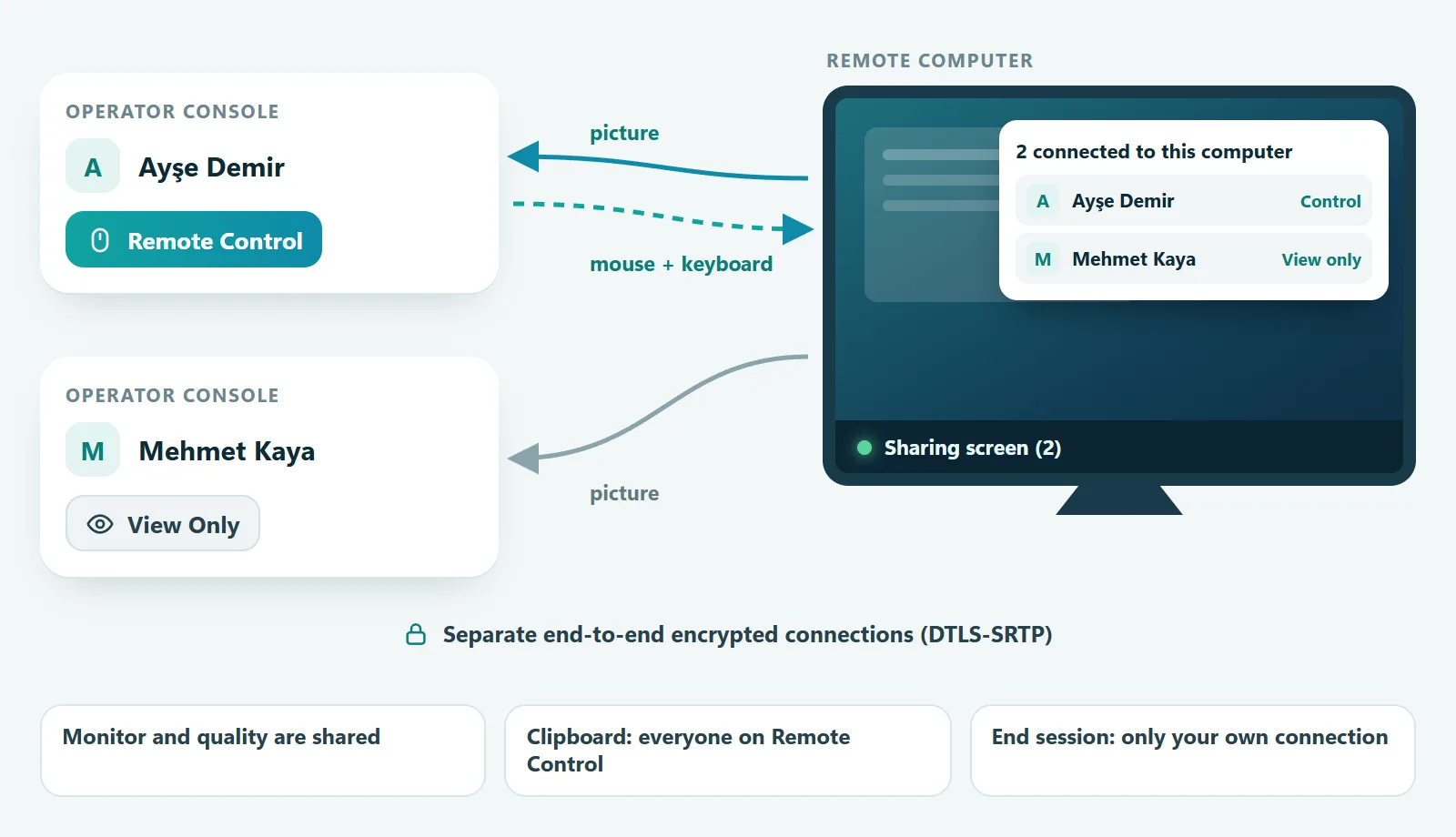
The remote computer produces a single picture and sends it to every connected operator. Here's how a shared session works:
| Topic | How it works |
|---|---|
| Mouse and keyboard | Every operator connected with Remote Control can use them at the same time. An operator connected with View Only can only watch. |
| Monitor and quality | Shared: when one operator switches monitors or changes picture quality, it affects everyone's view. |
| Clipboard | Text and files copied on the remote computer are offered to every operator connected with Remote Control. |
| Chat | Messages from the remote user go to all operators. A message from an operator is seen only by the remote user. |
| Privacy screen | When one operator turns it on or off, the state shows in the others' Actions menu too. It's removed automatically when the last operator leaves. |
| Recording (REC) | Each operator's recording is saved only on their own computer. While anyone records, the remote user is notified. |
| Ending the session | End session closes only your own connection; the other operators stay connected. |
What does the person at the screen see?
Multiple people being connected is never hidden:
- The status line at the bottom of the Polpo Desk window shows how many operators are connected, for example Sharing screen (2).
- A notification appears when someone joins or leaves.
- The session panel at the edge of the screen says 2 connected to this computer and lists each operator's name, company, connection type and how long they've been connected.
The user can disconnect any single operator: click the status line to open the Connected operators list, click Disconnect next to that operator and confirm with Are you sure?. The other operators stay connected.
Security and audit trail
- Every connection is authorized separately. The second operator doesn't inherit the first one's permission; approval or a password is required again.
- Every connection is separate and end-to-end encrypted. Screen, keyboard, clipboard and file traffic are protected by WebRTC's DTLS-SRTP encryption.
- You know who connected and when. Each operator's session is logged separately under their own name. Administrators can follow it in the web panel's session and audit reports.
- No account sharing. One account can't stay signed in in two places.
Plans and the concurrent connection limit
Each operator connected to the computer uses one slot of your team's concurrent connection limit. For two operators to work together, your plan needs at least two concurrent connections. When the limit is reached, no new connection opens and a Limit reached warning appears. Some plans let you buy extra connections; see Plans and limits.
4 tips for working together
- Agree up front who drives. Two people moving the mouse at once gets messy; let one control while the other watches.
- Choose View Only if you're only watching. No more accidental clicks.
- Announce monitor and quality changes. They affect everyone's screen.
- Leave the session when you're done. Every connected operator uses a slot and stays in the user's list.
Frequently asked questions
How many operators can connect to one computer?
Your plan's concurrent connection limit decides. Each connected operator uses one slot.
Can operators message each other in the chat?
No. Session chat is between the remote user and the operators: the user's messages go to everyone, while operators' messages are seen only by the user. Use your own team messaging tool to talk among yourselves.
If the first operator leaves, does the session end?
No. End session closes only that operator's connection; the others keep working.
Can one operator connect to several computers at once?
Yes. You can open several sessions to different computers in the console; open sessions appear as tabs at the top. Each one also uses a concurrent connection slot.
Conclusion
Supporting customers as a team doesn't mean switching tools or keeping the customer waiting. Check the Team card for a teammate who's free, have them connect with the same ID and solve it together. The person at the screen sees who's connected at all times and can disconnect anyone they want.
Download Polpo Desk · Help: Multiple operators in one session