
Your first remote connection, step by step
Open the client on the computer receiving support, share the ID, connect from the operator console and approve. Your first Polpo Desk session end to end.
Last updated:
This article walks through your first Polpo Desk session from both sides: the person receiving support (client) and the person providing support (operator).
Before you start
- The operator needs a Polpo Desk account. If you don't have one yet: Creating an account.
- The computer receiving support needs the Windows client. Download and installation: Installing the Windows client.
1. Receiving side: share your details
- Open the Polpo Desk client.
- Wait until the status line at the bottom shows Ready to connect.
- Give the 9-digit number under Your Connection ID to the operator. You can copy it with the copy button next to it.
- Optionally share the Session Password too. Press the eye icon to see it.
You'll find more about the ID and password in Your Polpo address.
2. Operator: start the connection
- Open the operator console: for the web console, go to Access → Web Console → Open in the panel, or use the Windows/macOS app (Operator apps).
- Sign in with your account.
- Type the 9-digit ID into the Connect to Remote Device field on the home page.
- In the Connection Type section on the right, choose Remote Control, View Only or File Transfer.
- Press Connect.
The Connecting to device… window opens and waits for approval from the other side. At this point there are two ways forward:
- The person receiving support approves, and the session starts.
- If you know the session password, type it into the Session password (optional) field in that window and press Connect with Password; the session starts without waiting for approval.
3. Receiving side: approve
When the operator tries to connect without the password, the Incoming connection request window opens in the client.
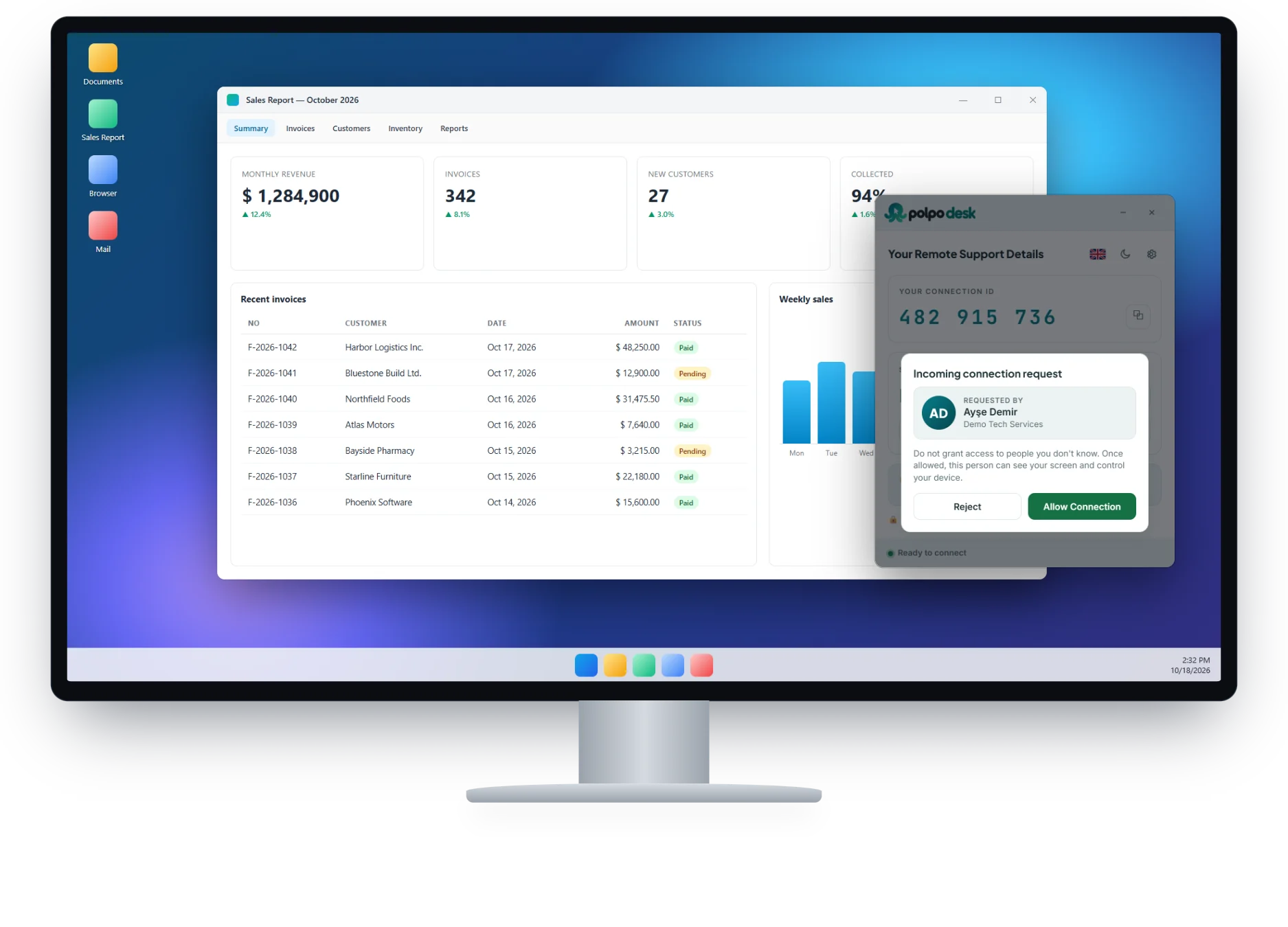
- Check the operator's name and company under Requested by.
- If you know them, press Allow Connection; if not, press Reject.
Once the connection is accepted, the status line shows Sharing screen and the operator starts seeing your screen.
4. During the session
Depending on the connection type chosen, the operator watches the screen or uses the mouse and keyboard. During the session you can also use:
- File transfer and clipboard sharing
- Chat and special keys such as Ctrl+Alt+Del
- Switching between multiple monitors
For image quality and permissions: Session settings.
5. Ending the session
The operator closes the connection with the ✕ on the session tab.
The person receiving support can also end the session at any time:
- Click the Sharing screen status line at the bottom of the client.
- In the Connected operators list, press Disconnect next to the person.
- The button changes to Are you sure?; press it again within a few seconds to confirm.
After the session, we recommend pressing Renew Password to invalidate the old password.
If the connection fails
- If the client stays on Connecting…: Client stuck on Connecting
- If the operator can't reach the device (offline, wrong password, rejected): Cannot connect to a device
- If the connection is established but no image appears: Black screen