
Session settings: quality, view and connection type
Set the default quality, view and connection type in the operator console, and change quality, scaling and the remote cursor during a session.
Last updated:
How a session looks and what you can do in it is decided in three places: the connection type you pick before connecting, the default settings in the operator console, and the session toolbar you use during the session.
Connection type
In the Connection Type section on the home page, choose one of three options before you connect:
| Type | See the screen | Mouse and keyboard | File transfer | Clipboard sharing |
|---|---|---|---|---|
| Remote Control | Yes | Yes | Yes | Yes |
| View Only | Yes | No | No | No |
| File Transfer | No | No | Yes | No |
- Ctrl+Alt+Del, restart, switching between the sign-in screen and the active session, and the privacy screen in the Actions menu are only available in Remote Control sessions.
- Chat works with every connection type.
- The other side sees which type you connected with (Control, View only or File transfer) in the client's list of connected operators.
Default settings
- Open Settings from the left menu.
- In the Display & Connection section, choose:
- Default quality: High, Balanced or Fast
- Default view: Fit to window or Original size
- Default connection type: Remote Control or View Only
- Show remote cursor
- Click Save in the top-right corner. The Settings saved notification appears.
These settings are saved to your account, so they also apply when you sign in to the console on another computer. Every new session starts with these values.
The session toolbar
When a session opens, the session toolbar appears at the top center of the remote screen:
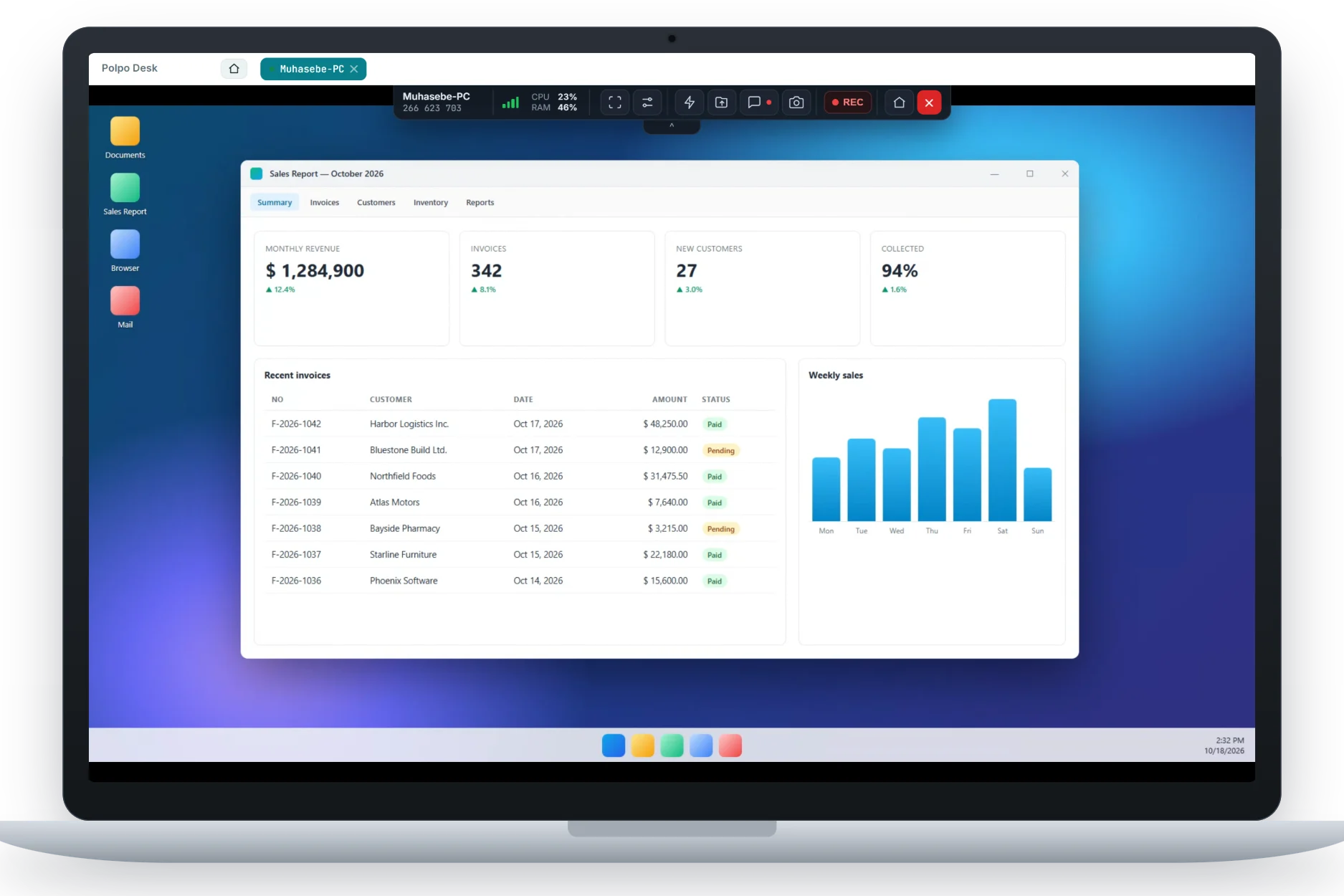
From left to right:
- Device name and ID
- Connection quality bars: hover over them to see the quality (good, fair, poor) and the latency in milliseconds.
- CPU / RAM: the remote computer's processor and memory usage. Hover to see details for the processor, Polpo Desk's share, memory and uptime. Values turn yellow above 80% and red above 95%.
- Fullscreen button
- View and quality menu (slider icon)
- Actions (lightning bolt), File transfer (upload/download), Chat and Take screenshot buttons
- REC (Start / stop recording): starts or stops recording.
- Home (console) and End session (red ✕)
Use the small arrow handle below the toolbar to hide and show it again. If the remote computer has more than one monitor, the toolbar also has numbered screen buttons; see Working with multiple monitors.
The view and quality menu
During a session, click the slider icon to change these options instantly:
- View
- Full-screen mode: spreads the remote screen across your whole screen.
- Original size (1:1): shows the remote screen without scaling. If the remote screen is larger than your window, not all of it may fit.
- Fit to window: fits the remote screen into your window. Because the remote computer sends the picture at the displayed size, text stays sharp.
- Quality
- High · original resolution: the sharpest picture; uses more bandwidth.
- Balanced: the default; a balance between sharpness and smoothness.
- Fast · low latency: smoother and more responsive on slow connections; the picture is less sharp.
- Show remote cursor: adds the remote computer's mouse pointer to the picture.
- Show resource usage (CPU / RAM): shows or hides the CPU/RAM indicator on the toolbar.
Screenshots and recording
- Take screenshot (camera icon): downloads the current picture of the remote screen to your computer as a PNG file.
- REC: starts recording the remote screen; the button shows the elapsed time. Click it again to stop, and the recording is downloaded to your computer as a
.webmvideo file. The recording contains the picture only and is never uploaded to Polpo Desk servers.
The first time you click REC in a session, the Session recording window reminds you: Inform the other side before you start recording; while recording, a “This session is being recorded” notice is shown on their screen. Click Start recording to begin, or Cancel. As long as the recording runs, the remote user sees a red This session is being recorded by the operator notice in the client (Windows client 0.9.107 or later; on Android, a red line on the main screen). The notice disappears when you stop the recording or the session ends.
Settings on the other side
The client settings on the remote computer also affect the session: Ask for approval on every connection, Allow file transfer, Allow clipboard sharing and Allow privacy screen. You'll find what each one does in Client security settings. On computers with the Polpo Desk service installed, you choose which Windows session you see yourself: with Session to show in the Connecting to device… window, or from the Actions menu during the session. Details: Set up unattended access.
If no new picture arrives for a few seconds during a session, a Waiting for video… badge appears at the top of the screen. If you get no picture at all, see Black screen / no picture.